Blog

  • WooCommerce HPOS Migration in 2026: Safe Order Storage Checklist for Plugins, Payments & Backups

    WooCommerce HPOS Migration in 2026: Safe Order Storage Checklist for Plugins, Payments & Backups

    Quick answer: To migrate an existing WooCommerce store to High-Performance Order Storage (HPOS), first take a restorable database backup, audit extensions and custom order code, test on staging, enable compatibility synchronization, wait for order records to match, and only then switch the authoritative order store under WooCommerce > Settings > Advanced > Features. Keep synchronization on during a monitored transition and verify real order, refund, payment and fulfilment workflows before considering it complete.

    This WooCommerce HPOS migration checklist for 2026 is for store owners, developers and operations teams in Delhi NCR and across India. It explains the data-storage migration, not the separate problem of a payment gateway declining a card or missing a UPI webhook. If a payment is already stuck, investigate the transaction before changing order storage. For help with architecture and store maintenance, see our WooCommerce development services.

    What is WooCommerce HPOS and why does it matter?

    HPOS stands for High-Performance Order Storage. Traditional WooCommerce stored order information in WordPress’s shared posts and postmeta tables. HPOS uses dedicated order tables designed for ecommerce data, including order details, addresses, operational information and order metadata. This reduces dependence on the general-purpose WordPress post model and can make order operations easier to scale.

    HPOS became the default for new WooCommerce installations starting with WooCommerce 8.2 in October 2023. Existing stores are not automatically migrated simply because WooCommerce itself is updated. Check the actual storage selection in your store instead of assuming it is already enabled. The official WooCommerce HPOS documentation explains how the two storage systems work.

    Important: HPOS is a database architecture improvement, not a guaranteed checkout conversion increase or a direct Google ranking factor. Its value depends on order volume, server configuration, extensions, queries and operational practices. Measure your own store before and after the migration.

    HPOS vs legacy WordPress order storage

    Area Legacy posts storage HPOS
    Primary order records Shared WordPress posts/postmeta tables Dedicated WooCommerce order tables
    Order lookups General-purpose post metadata queries Order-focused structure and indexes
    Extension compatibility Older direct-post integrations may work Extensions should use WooCommerce order APIs
    Migration requirement Existing authoritative storage Requires synchronized data and compatibility checks
    Rollback Can remain authoritative Switching back requires up-to-date synchronized records

    For a store selling products in Delhi, Noida, Gurugram or Ghaziabad, the most important question is not whether HPOS is fashionable. It is whether orders, payments, GST invoices, shipping updates and customer support records remain consistent after the change.

    What changed for HPOS in 2026?

    In April 2026, WooCommerce 10.7 changed the default behavior of sync on read for stores using HPOS. Previously, an older plugin that wrote directly into WordPress order post metadata could sometimes have those changes pulled into HPOS during an order read. From WooCommerce 10.7, that reverse synchronization is disabled by default. Ordinary compatibility-mode synchronization from HPOS to backup posts storage continues.

    This is a meaningful reason to audit older integrations in 2026. A custom GST invoice script, courier plugin or warehouse connector that directly edits postmeta may appear to work but fail to update the authoritative HPOS order. WooCommerce recommends moving such code to its supported order CRUD APIs rather than relying on a temporary compatibility mechanism. See the February 16, 2026 WooCommerce developer advisory.

    Step 1: Back up the entire store before touching order storage

    Take a full database backup and confirm that you can restore it. Capture the active WooCommerce version, PHP version, plugin list, payment-gateway settings, scheduled actions, custom code and current order count. A database backup is essential because the migration changes how order records are stored. Also protect uploaded invoices, store configuration and other files if your recovery plan depends on them.

    • Store a verified backup away from the production server.
    • Record the time and order ID of the most recent successful purchase.
    • Confirm the backup contains orders, refunds, subscriptions and relevant extension tables.
    • Document who can authorize rollback and how recent orders will be reconciled.
    • Choose a quiet trading window with a person available to monitor checkout.

    Do not restore an old production backup over a live store after new orders have arrived without a reconciliation plan. That can erase legitimate purchases. If your team lacks a tested backup process, establish one through a website maintenance and recovery plan before migrating.

    Step 2: Audit plugins and custom code for HPOS compatibility

    Open WooCommerce > Settings > Advanced > Features and inspect the HPOS compatibility information. WooCommerce may prevent switching while known incompatible extensions are active. Review the list instead of bypassing warnings. Pay special attention to payment gateways, subscriptions, bookings, accounting, GST invoicing, fulfilment, warehouse synchronization, returns, CRM connectors and custom admin reporting.

    For developers, search custom code for direct calls such as get_post_meta(), update_post_meta(), WP_Query on shop_order and direct SQL against order posts. Such calls are not automatically wrong in every context, but order reads and writes should generally use WooCommerce APIs like wc_get_order(), WC_Order methods and wc_get_orders(). Test the behavior rather than relying only on a plugin’s marketing claim.

    Keep order-related extensions active during the migration. WooCommerce warns that disabling extensions that store related custom post types, such as some subscription or booking extensions, can create data discrepancies. The HPOS extension recipe book documents the supported development patterns.

    Step 3: Rehearse the full migration on staging

    Create a staging environment with a recent copy of production data, the same plugin versions and the same relevant customizations. Use payment-provider sandbox credentials and never trigger live customer charges from staging. Test an order from creation to refund, including coupon calculation, tax, inventory reduction, order emails, invoices and courier integration.

    A simple test that only opens the WooCommerce Orders screen is not enough. Your acceptance checklist should include guest checkout, logged-in checkout, UPI or card sandbox payment, COD, partial and full refunds, order notes, downloadable products where relevant, subscription renewals and reporting exports. Verify the actual data each integration reads and writes.

    Step 4: Enable compatibility mode and synchronize orders

    On the existing store, navigate to WooCommerce > Settings > Advanced > Features. If WordPress posts storage is authoritative, enable the option that synchronizes order data between the legacy and HPOS stores. WooCommerce schedules background actions to backfill records. Monitor WooCommerce > Status > Scheduled Actions for failed or overdue tasks and wait for synchronization to finish.

    Do not switch the authoritative store while orders are pending synchronization. For larger stores, a developer with server access can use the modern WooCommerce CLI commands, including wp wc hpos status, wp wc hpos count_unmigrated, wp wc hpos sync and wp wc hpos verify_data. The older wp wc cot namespace is deprecated; use the current WooCommerce HPOS CLI reference.

    Compare the total orders, newest order IDs, order statuses and representative historical records in both data stores. Where possible, use the built-in verification command to identify discrepancies rather than assuming a completed background queue proves every record is correct.

    Step 5: Switch HPOS on only after verification

    When WooCommerce reports synchronized records and no blocking incompatibilities, choose High-performance order storage as the authoritative order data store. Keep compatibility mode enabled during the initial monitored period. Save the setting and immediately run the staging-tested checkout and administration checks on production with appropriate low-risk test orders.

    Do not use direct database edits to force the option on. Do not disable a payment or invoice plugin just to remove a warning without understanding the data it owns. The objective is a reliable store, not merely a green toggle in the settings screen.

    Step 6: Verify UPI payments, refunds, GST invoices and fulfilment

    For Indian stores, HPOS testing must cover more than successful card authorization. Confirm that the payment gateway can update the WooCommerce order status after a signed callback or webhook; the transaction reference remains linked to the correct order; refunds are reflected in both WooCommerce and the provider; and invoice plugins can retrieve the same tax and customer details after migration.

    Workflow What to verify Risk if skipped
    UPI and card payments Provider transaction matches order amount and status Paid orders may appear pending
    Refunds Refund ID, amount and order notes remain consistent Support and accounting mismatch
    GST invoicing Invoice data, HSN and tax totals are available Missing or incorrect documents
    Shipping and COD Courier connector reads and updates order records Fulfilment delays or duplicate dispatch
    Subscriptions Renewals and related order references remain correct Recurring billing disruption

    If you see a payment marked successful at the gateway but still Pending in WooCommerce, do not ask the customer to pay again before reconciling the original transaction. Payment-provider webhooks and HPOS storage are separate systems. For help with gateway architecture, see our payment gateway integration service.

    Step 7: Monitor the store and keep a rollback path

    Monitor orders, payment success, error logs, failed scheduled actions, refunds, checkout latency and support tickets after the switch. Keep a record of the cutover time and any changes to plugins or custom code. If the store has a serious issue, follow WooCommerce’s supported rollback process: ensure the backup posts tables are synchronized, then switch the authoritative order storage back to WordPress posts storage.

    Rollback is not always an instant one-click fix if compatibility synchronization was disabled and new orders exist only in HPOS. In that case, backfill the missing records first and verify them before changing authority. Avoid editing tables manually unless an experienced developer has a validated recovery plan. WooCommerce’s large-store migration guide recommends staged testing, verification and monitored transitions.

    Should you disable compatibility mode after migration?

    Compatibility mode creates a backup copy of order data in the legacy tables. It is useful during transition but adds synchronization work. Consider turning it off only after the store has run reliably with HPOS, extensions are confirmed compatible, order data is verified, and your backup and rollback strategy is current. There is no universal safe number of days for every store. High-volume and heavily customized stores may need a longer monitored period.

    Before disabling synchronization, confirm no integration depends on reading the legacy order tables. Document that future rollback may require another synchronization pass. Continue using WooCommerce’s supported APIs for all order operations.

    Does HPOS improve SEO or Core Web Vitals?

    HPOS is not a direct SEO setting. It changes order storage, not product titles, structured data, canonical URLs or the indexability of category pages. Better backend efficiency can support a more reliable ecommerce experience, but do not promise ranking gains from switching HPOS on. Measure storefront performance, checkout completion, server errors and order-processing latency separately.

    For businesses running ads in Delhi NCR, focus on measurable outcomes: fewer checkout errors, correct payment reconciliation, stable order exports and dependable fulfilment. Use analytics and gateway records rather than attributing every conversion change to HPOS.

    WooCommerce HPOS migration checklist for store owners

    1. Confirm the current WooCommerce version and order storage mode.
    2. Take and test a restorable database backup.
    3. Inventory payment, invoice, shipping, subscription and CRM plugins.
    4. Audit custom order queries and direct metadata writes.
    5. Rehearse the migration on a realistic staging site.
    6. Enable compatibility synchronization and monitor Scheduled Actions.
    7. Verify order counts, sample records, refunds and data integrity.
    8. Switch HPOS to authoritative storage only when ready.
    9. Test UPI, cards, COD, GST invoices, emails and fulfilment.
    10. Monitor production and document the rollback procedure.
    11. Disable compatibility mode only after a deliberate review.

    Frequently asked questions about WooCommerce HPOS in 2026

    What is HPOS in WooCommerce?

    HPOS is High-Performance Order Storage, a WooCommerce system that stores orders in dedicated database tables rather than relying primarily on WordPress posts and postmeta tables.

    Is HPOS enabled automatically on existing stores?

    No. It is the default for new WooCommerce installations from version 8.2 onward, but existing stores must check their storage settings and complete the supported migration process.

    Can HPOS migration delete orders?

    A correctly planned migration is designed to preserve order data, but incompatible extensions, interrupted synchronization or unsafe manual changes create risk. Keep backups, verify records and use staging before switching.

    How do I know if a plugin supports HPOS?

    Review WooCommerce’s incompatible extension warnings, check the plugin developer’s compatibility documentation and test actual order workflows on staging. Custom code also needs review.

    Why are some orders missing after switching to HPOS?

    Investigate incomplete synchronization, an extension writing directly to legacy tables, stale reporting caches and whether the expected store is authoritative. Compare order IDs and data using supported WooCommerce tools before editing records.

    Does HPOS fix WooCommerce UPI payment failures?

    Not by itself. UPI failures often involve gateway authorization, callbacks or webhook delivery. HPOS affects order storage; the gateway integration must still be configured and tested separately.

    Can I roll back from HPOS to legacy order storage?

    Yes, when the legacy records are synchronized and the switch is supported. If synchronization has been disabled, backfill and verify newer orders first. Never overwrite legitimate recent orders with an old backup.

    Will HPOS automatically improve Google rankings?

    No. HPOS is a backend storage architecture feature. SEO still depends on crawlability, relevant content, page experience, structured data, internal links and other search fundamentals.

    Need a WooCommerce HPOS readiness audit in Delhi NCR?

    Keshav Enterprises works with ecommerce businesses that need dependable WordPress development, payment integrations and ongoing website support. If your store has legacy plugins, large order histories, complex GST invoicing or UPI payment workflows, start with a compatibility and backup review before changing production data. Share your WooCommerce migration requirement for a scoped technical discussion.

    Technical references: WooCommerce HPOS documentation, HPOS CLI reference, and the WooCommerce developer advisory published February 16, 2026. Verify procedures against your installed WooCommerce version and extension stack before applying changes to a live store.
  • WooCommerce Checkout Payment Failed in 2026? Fix UPI, Pending Orders & Webhooks

    WooCommerce Checkout Payment Failed in 2026? Fix UPI, Pending Orders & Webhooks

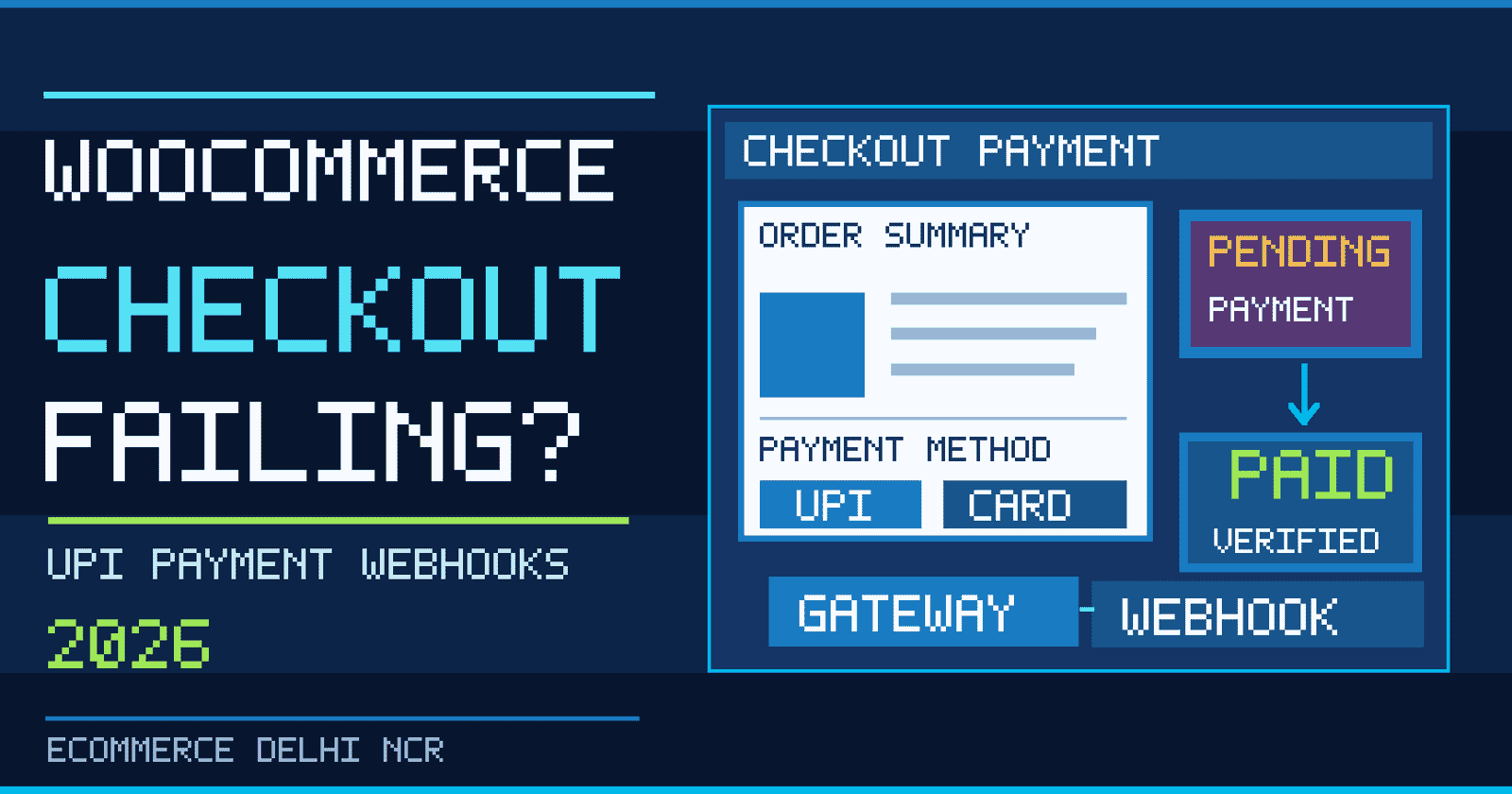
    Quick answer: If WooCommerce checkout payments are failing, first identify whether the shopper’s payment was declined, the gateway was unable to complete a transaction, or the payment succeeded but WooCommerce never received confirmation. Check the order status and notes, compare the transaction in the payment provider’s dashboard, inspect gateway logs and webhook delivery, and reproduce the problem in a safe test environment. Do not ask customers to pay again until you have checked whether the first attempt charged them.

    This practical WooCommerce checkout troubleshooting guide for 2026 focuses on UPI, card payments, missing payment methods, orders stuck in Pending payment, webhook failures and mobile checkout friction. It is intended for ecommerce teams in Delhi NCR and across India using WordPress and payment providers such as Razorpay, PayU or Cashfree. Gateway features and configuration screens vary, so use the documentation for the specific plugin installed on your store.

    Why does WooCommerce checkout fail even when the website looks fine?

    The checkout page is only one part of a payment journey. A customer selects a method, the store sends a request to the gateway, the payment provider processes the attempt, and the store receives a return response or a server-to-server notification. An error at any stage can make the customer believe the order failed. A successful payment can also appear as an unpaid WooCommerce order if the confirmation never reaches the store.

    First separate payment failure from order-status synchronization failure. The fixes are different. A declined card is not solved by clearing WordPress caches. A successful UPI transaction stuck in Pending payment is not solved by asking the shopper to try another card. For broader store architecture, see our WooCommerce development service.

    Diagnose the problem using this checkout symptom table

    What you see Likely investigation Safe first action
    Payment declined Issuer decline, authorization, limits or gateway response Read order notes and gateway error code
    UPI payment succeeded but order remains Pending Missing or delayed webhook/callback Reconcile transaction ID before any retry
    UPI or card option missing Gateway eligibility, checkout-block compatibility, country or currency rules Check enabled methods and test with a supported address
    Checkout spins indefinitely JavaScript error, blocked API request, plugin conflict or slow server Inspect browser console and network requests
    Two orders for one shopper Repeated submission, gateway retry or duplicate callbacks Compare both orders with provider transaction records
    Order total changed at checkout Coupons, tax, dynamic pricing or currency recalculation Refresh the checkout total and investigate the price change
    Order is On hold Manual payment method, delayed confirmation or authorization-only setup Verify the payment method and capture status

    WooCommerce’s official order troubleshooting documentation recommends checking the order record, notes, provider dashboard and logs before changing settings.

    Step 1: Check WooCommerce order status, notes and transaction ID

    Open WooCommerce > Orders, select the affected order, and record the order number, time, payment method, status, gateway transaction ID and order notes. If the customer reports a debit, look up the same transaction in the payment gateway dashboard. Preserve the evidence without copying full card details or sensitive customer information into a shared troubleshooting document.

    • Pending payment: The order exists but payment is not confirmed in WooCommerce. It does not prove that the customer was not charged.
    • On hold: Often expected for bank transfer, delayed notification or an authorization that has not been captured.
    • Processing: Payment is generally received for a physical-goods order awaiting fulfilment.
    • Completed: Fulfilment is marked complete, commonly for digital or already delivered items.
    • Failed: The payment attempt was unsuccessful or rejected according to the store’s recorded status.

    Compare these statuses with the provider’s own records. If money was captured but the order is Pending, investigate the missing callback or webhook and reconcile it before fulfilment. The official WooCommerce order status reference explains the distinctions.

    Step 2: Fix UPI payments that fail or remain pending

    For Indian ecommerce stores, UPI failures can involve app handoff, customer cancellation, a gateway timeout, provider-side status delays or missing server-side notifications. A successful UPI authorization should not be inferred merely from a shopper returning to the thank-you page. Confirm it using the provider’s verified transaction record or an authenticated payment notification.

    1. Check that UPI is enabled and approved for the merchant account and applicable checkout mode.
    2. Verify the payment plugin is current and compatible with the installed WooCommerce version.
    3. Test the mobile UPI intent flow and any supported desktop QR or collect flow separately.
    4. Compare the merchant order reference with the provider payment ID and amount.
    5. Inspect the webhook or callback configuration for authentication, URL reachability and error responses.
    6. Confirm the store does not mark an order Paid solely from an untrusted browser query parameter.
    7. Use a staging or provider test environment to reproduce errors without generating real customer charges.

    Gateway capabilities differ by merchant approval and device. Razorpay’s WooCommerce integration information describes its supported payment methods, including UPI. Do not assume every UPI flow is available on every account.

    Step 3: Inspect payment webhooks and callback delivery

    Webhooks are server-to-server notifications that can update WooCommerce when a payment’s status changes. If a buyer closes the browser after approving UPI, a properly configured webhook may still notify the store. If webhook delivery is broken, a successful payment may remain Pending until the issue is reconciled.

    Review the webhook URL and signing secret in the provider dashboard, then inspect recent delivery attempts. Look for repeated non-2xx responses, authentication failures, TLS problems, blocked requests or application errors. Use provider-supported redelivery where available, and ensure webhook handlers are idempotent: repeated delivery of the same event must not create duplicate fulfilment or duplicate orders.

    Do not disable signature verification to make an error disappear. Validate the provider’s signature, expected event type, transaction reference, amount and merchant account before updating order state. For a broader implementation discussion, see payment gateway integration services.

    Step 4: Check why payment methods disappear at checkout

    Sometimes the payment is not failing: the intended payment option is never shown. Verify the gateway is enabled in WooCommerce > Settings > Payments. Next, check supported currencies, billing countries, product restrictions, merchant activation and any conditional payment rules. Test with a real product, a supported shipping address and the same browser/device type that reported the problem.

    Checkout Blocks versus classic checkout: A payment extension must support the checkout architecture used on the site. The block editor can flag incompatible payment integrations. Check WooCommerce Checkout block documentation before replacing templates or disabling plugins. Some providers also cache payment-method availability, so follow their plugin-specific refresh instructions.

    Step 5: Troubleshoot JavaScript errors, plugins and caching

    If the Pay button spins or a payment modal never opens, open browser developer tools and inspect the Console and Network tabs. Look for failed requests, 403 or 500 responses, blocked scripts, mixed-content warnings and JavaScript exceptions. A WordPress optimization plugin can accidentally defer or combine payment scripts that must run in a specific order.

    • Exclude cart, checkout and order-received pages from inappropriate full-page caching.
    • Check that session and cart cookies work consistently across domain and HTTPS redirects.
    • Temporarily disable script optimization only in staging to isolate a conflict.
    • Test with a default theme and only the essential WooCommerce/payment extensions on staging.
    • Review WooCommerce > Status > Logs and the System Status report for plugin and template warnings.

    Never run a plugin conflict test on a busy live store by indiscriminately disabling the payment gateway. Create a staging copy and use test credentials first. WooCommerce’s payment error guide recommends controlled testing and reviewing order notes and logs.

    Step 6: Investigate checkout total mismatch and dynamic pricing

    A shopper may see a message that the total changed between viewing checkout and placing an order. Check whether a coupon expired, a scheduled sale started, shipping or tax was recalculated, or a currency switcher changed the amount. For stores running WooCommerce 11.1 or later with block-based checkout, WooCommerce documents an intentional safeguard that stops checkout if the payable total increases after the shopper reviewed it. That message should not automatically be treated as a gateway outage.

    Ask the customer to refresh the total and review the amount. If the mismatch is frequent, reproduce it in staging with dynamic-pricing and currency plugins, then correct the source of the recalculation. Avoid bypassing price-consistency checks without understanding the security implications.

    Step 7: Make mobile checkout easier without compromising payment safety

    Many Delhi NCR ecommerce customers arrive on mobile. A technically successful payment flow can still lose orders if buttons are hidden, address fields are cumbersome or app handoff is confusing. Test common Android and iPhone browsers, network speeds, logged-in and guest checkout, coupon application, delivery pin codes and the back button after returning from a payment app.

    Prioritize readable error messages, clearly labelled payment methods, visible totals, an accessible Pay button and a recovery path when the customer abandons payment. If the order is uncertain, display a neutral Checking payment status message rather than falsely declaring success or failure. Pair payment reliability with a fast storefront; our ecommerce development guide explains the broader store experience.

    Step 8: Prevent duplicate charges and misleading purchase analytics

    Customers sometimes tap Pay twice when a page is slow. A payment provider may also retry a webhook. Use idempotent server-side operations and a stable merchant order reference so that one intended purchase does not generate multiple fulfilment actions. If a customer claims they were charged twice, investigate both provider transactions and follow the gateway’s refund or dispute procedure.

    Separately, marketing tags should fire only under a documented confirmed-purchase policy. A payment initiation is not the same as a completed purchase. Our Google Ads purchase conversion tracking checklist explains transaction IDs and duplicate measurement. This article is about payment reliability, not advertising attribution.

    Seven-day WooCommerce checkout repair plan

    Day Action Evidence to save
    1 Collect failed order samples and categorize symptoms Order IDs, statuses, gateway references
    2 Review gateway credentials, enabled methods and merchant settings Configuration checklist without secrets
    3 Audit webhook delivery and order-state reconciliation Event IDs, response codes, timestamps
    4 Reproduce mobile UPI, card and COD paths in staging Test matrix and screen recordings
    5 Isolate checkout block, plugin and caching conflicts Before/after error logs
    6 Fix verified root causes and retest edge cases Passing tests and rollback plan
    7 Monitor production and reconcile exceptions Failed-payment rate and unresolved cases

    Measure the percentage of attempted checkouts that reach a confirmed paid order, segmented by device and payment method. Also track unresolved Pending orders, webhook errors and customer complaints. Do not present payment-provider success rates as your own store’s results unless you have measured them.

    Frequently asked questions about WooCommerce checkout failures

    Why is my WooCommerce order stuck in Pending payment?

    WooCommerce has not recorded confirmed payment. The customer may have abandoned checkout, the provider may still be processing the transaction, or a webhook may have failed. Check the gateway dashboard before requesting a retry.

    Why does UPI work on one phone but fail on another?

    Different devices, browsers and UPI apps may support different handoff paths. Check the gateway’s supported flows and test mobile intent, QR and fallback options where available.

    How do I fix a successful Razorpay payment that still shows Pending in WooCommerce?

    Match the provider payment ID, merchant order ID and amount. Inspect webhook delivery and plugin logs, then reconcile the order using the provider’s supported process. Do not mark an order paid from an unverified screenshot alone.

    Can a cache plugin break WooCommerce checkout?

    Yes. Incorrect full-page caching or JavaScript optimization can interfere with cart sessions and payment scripts. Test checkout exclusions and script behavior in staging.

    What if the payment option is missing from the Checkout block?

    Check whether the payment extension supports block checkout, and confirm merchant activation, currency and customer-country rules. The editor may identify incompatible integrations.

    Should I ask a customer to retry when checkout times out?

    Only after checking whether the first attempt created a charge or authorization. Otherwise, the customer could be charged twice.

    Does an On hold order mean payment failed?

    No. It can be normal for offline payments, delayed settlement or authorization-only flows. Review the payment method and order notes.

    Does fixing checkout automatically fix Google Ads conversion tracking?

    No. Payment confirmation and advertising measurement are separate systems. Once payments work, test the purchase event, transaction ID, value and consent configuration independently.

    Need help fixing WooCommerce payment errors in Delhi NCR?

    Businesses in Delhi, Noida, Gurugram, Ghaziabad and Faridabad should troubleshoot failed checkout systematically instead of installing another payment plugin blindly. Keshav Enterprises supports WooCommerce builds, gateway integration, performance improvements and ecommerce maintenance. Share your checkout issue with our team, including the affected gateway, symptom and approximate time of the failure, but never send API secrets or card data through a contact form.

    Editorial note (28 October 2026): Payment-gateway features and WooCommerce versions change. Verify the documentation for the exact versions installed on your site before applying a production fix.

  • Google Merchant Center Product Disapprovals in 2026: Fix Price, Stock and GTIN Errors

    Quick answer: To fix a Google Merchant Center product disapproval, open the affected product in Merchant Center, read its specific issue and affected destination, compare the submitted feed with the live product page and checkout, correct the source data, then request a review when that issue requires one. Price, availability, product identifiers and landing-page accessibility are common starting points. Do not repeatedly resubmit unchanged data.

    For Shopify and WooCommerce stores in Delhi NCR and elsewhere in India, product disapprovals can interrupt Shopping ad eligibility and free product listings. This guide focuses on Merchant Center product data troubleshooting, not general product-page SEO or a promise that every item will be approved.

    What does “product disapproved” mean in Google Merchant Center?

    A disapproved product is not eligible to appear in the affected Google destination until the relevant issue is resolved. The restriction may affect one product, a group of products, a destination or the account. A warning, limited-performance status and full disapproval are different outcomes, so read the exact status instead of treating them as interchangeable.

    Google’s product data quality troubleshooting guidance identifies issues involving price, availability and product identifiers. Its automatic updates documentation also explains why feed and website data should stay aligned.

    Start with a five-minute Merchant Center diagnosis

    1. Open Merchant Center and find the product-level issue list or the product’s details. The interface wording can change, so use the current Needs attention or issue view available in your account.
    2. Record the item ID, country, affected destination, exact error text and when the product was last processed.
    3. Open the landing-page URL in a private browser session, on mobile and desktop. Confirm the correct variant loads without login or a location-blocking interstitial.
    4. Compare the feed’s price, sale price, currency, stock status, identifiers and product link with the visible page and checkout.
    5. Fix the underlying system of record first, then resync and allow time for processing. Request review only if Merchant Center offers or requires that step.

    Practical tip: Keep a short issue log with item ID, root cause, owner, date fixed and review outcome. That prevents a store team from making the same correction twice while a feed refresh is pending.

    Merchant Center disapproval causes and fixes at a glance

    Issue What to check Best first action
    Price mismatch Feed price versus product page, selected variant, currency and checkout Correct the source price and structured data; refresh the feed
    Availability mismatch Inventory status, preorder/backorder rules, variant stock Sync inventory and displayed availability
    Invalid or missing GTIN Barcode format, manufacturer identifier, brand and variant mapping Use genuine identifiers assigned to the actual product
    Landing page inaccessible HTTP status, redirects, mobile access, robots restrictions and login walls Make the exact product URL reliably accessible
    Shipping or return discrepancy Account policies, feed settings, product page and checkout Align displayed policies and configured charges
    Image or product-data issue Main image quality, promotional overlays, attributes and variant data Correct the specific policy or attribute problem

    1. Fix product price mismatches without hiding the real price

    A price mismatch occurs when Google finds a difference between submitted pricing and what a shopper sees on the landing page or during checkout. Common causes include an outdated feed, incorrect sale-price scheduling, a currency mismatch, a default variant with a different price, or a storefront showing one price to crawlers and another to customers.

    For a product listed at ₹1,999, the feed should not advertise ₹1,499 unless the lower amount is a genuine, currently available sale price and the applicable sale-price attributes are configured correctly. Check whether taxes and mandatory charges are represented in a way consistent with the target market’s requirements.

    On Shopify, inspect the product and variant prices, compare-at price, market-specific pricing and any feed app mapping. On WooCommerce, inspect the regular and sale price, scheduled sale dates, currency plugins and variable-product defaults. Then inspect the rendered page’s product structured data to confirm it describes the offer users can actually buy.

    Google’s product approval tips recommend keeping landing-page information and product data consistent.

    2. Resolve availability errors at the variant level

    A product marked in_stock in the feed should not lead shoppers to an unavailable selection. Inventory errors often arise when a store has multiple sizes or colours, an app refreshes slowly, or stock changes between scheduled exports.

    Check the exact submitted variant, not just the parent product. Verify the add-to-cart state, stock messages, preorder terms and whether the selected variant remains available after the page loads. When the store changes inventory frequently, use a reliable feed/API sync rather than waiting for occasional manual exports.

    Google’s automatic updates can sometimes correct temporary differences using website data, but they are not a substitute for accurate, frequently refreshed source data. Depending on the issue, Google may still disapprove a product. See the official explanation of Merchant Center automations.

    3. Correct GTIN, brand and MPN data

    A GTIN is a global product identifier commonly represented by a barcode. An MPN is a manufacturer part number. These are not interchangeable with an internal store SKU. Supplying an invented GTIN, recycling one across unrelated products, or copying a barcode from a similar variant can cause data-quality problems.

    Use the identifier provided by the manufacturer for the specific item. For products that genuinely do not have assigned identifiers, follow the applicable Merchant Center product identifier rules instead of fabricating a value. Custom-made and certain other products may be handled differently. If you sell a manufacturer’s branded product, do not mark it as a custom item merely to bypass identifier requirements.

    Audit parent-child relationships in the feed: each size or colour variation must be represented consistently with its real identifiers, title and landing page. A clean SKU map between the ecommerce platform and Merchant Center reduces recurring errors.

    4. Make the product landing page crawlable and trustworthy

    Even a technically valid feed can fail when Google cannot retrieve the corresponding product page. Test the exact submitted URL, not just the store home page. Watch for redirect loops, a 404 or 5xx response, forced account creation, geo-blocking, expired security challenges, or content that appears only after a user action.

    Keep product titles, images, prices and stock information visible and consistent on mobile. If a product has moved, update the feed link to its canonical destination instead of depending on multiple redirects. For a new ecommerce build, ecommerce development and catalogue architecture should include these checks before launch.

    5. Check shipping, returns and India-specific storefront settings

    Shipping settings and displayed delivery terms should reflect the actual customer experience. For India-focused stores, verify the target country, INR pricing, applicable delivery zones and checkout charges. If your store sells across multiple markets, inspect the correct country-specific landing page and currency instead of assuming the Indian storefront represents every market.

    Keep return policies accessible and consistent with the policies configured in Merchant Center. Avoid blanket claims such as “free shipping” when exclusions or minimum-order thresholds apply. Fix the actual merchant policy or store configuration, not just the text in the feed.

    6. Troubleshoot Shopify product feed disapprovals

    On Shopify, the issue is often in the connection between product variants, the Google sales channel or feed app, and the live storefront. Work through the following sequence:

    1. Identify the exact Merchant Center item ID and variant.
    2. Confirm Shopify product status, sales-channel availability, inventory tracking and market pricing.
    3. Review Google channel/app field mappings for GTIN, brand, product type and shipping attributes.
    4. Compare the submitted feed with the live product page, including JSON-LD where present.
    5. Resync once the source is corrected and monitor whether the issue clears.

    For larger catalogue or theme changes, a Shopify development review can uncover variant mapping, app conflicts and inconsistent offer markup before they affect multiple products.

    7. Troubleshoot WooCommerce feed and schema issues

    WooCommerce stores can experience stale inventory caches, multiple plugins outputting conflicting product schema, variable-product price mismatches or delayed scheduled feed exports. Check that only the correct offer is exposed for the landing page, and that inventory updates reach the feed.

    Test a simple product and a variable product separately. Review plugin logs, cron reliability, tax display settings, cache invalidation and the export schedule. If checkout uses a different price than the product page, resolve that discrepancy before requesting a review.

    A WooCommerce development audit can help separate feed-app problems from catalogue, plugin and checkout configuration issues.

    8. Use automatic item updates carefully in 2026

    Merchant Center can use structured data and other page signals to automatically adjust some product information, including price, sale price, availability and condition. This is a useful safety net for occasional mismatches, not a strategy for leaving an inaccurate feed untouched.

    If your pricing changes several times daily or a large proportion of the catalogue is inconsistent, invest in more frequent reliable updates. When a sale starts or ends, verify the time zone, scheduled sale fields and the actual customer-facing price. Monitor whether automatic updates are being applied or whether items remain disapproved.

    9. A practical seven-day recovery workflow

    Day 1: Export affected products and group them by exact issue. Prioritise high-demand products and issues shared by many items.

    Day 2: Fix price and stock inconsistencies in the store’s source data. Test representative variants on mobile.

    Day 3: Audit GTIN, brand, MPN and feed mappings. Do not create identifiers without a legitimate source.

    Day 4: Verify landing-page accessibility, structured data, checkout totals, shipping and returns.

    Day 5: Refresh feeds and check processing results. Avoid changing several unrelated settings at once.

    Day 6: Request review where available or required, and document the submitted corrections.

    Day 7: Recheck the product statuses and create an ongoing exception report for new mismatches. Some reviews take longer than a day; this schedule is an internal workflow, not a guaranteed approval timeline.

    10. How to prevent repeat disapprovals

    Create one source of truth for price, inventory, identifiers and product URLs. Automate validation before a feed export, alert on unusual changes, and check a small sample of product pages after major theme, app, tax or shipping updates. Track disapproved items as a percentage of the active catalogue, but interpret the number alongside the affected destinations and business importance of those items.

    Pair feed quality checks with a broader technical SEO review for crawlability and structured data. The goals are related but different: a page can rank organically and still have a Shopping listing disapproved, or be approved in Merchant Center without ranking well in regular search.

    Frequently asked questions

    Why are my Google Merchant Center products disapproved?

    Common reasons include mismatched price or availability, invalid product identifiers, inaccessible landing pages and policy or attribute problems. The precise issue in Merchant Center determines the fix.

    How do I fix a price mismatch in Merchant Center?

    Compare the submitted price and currency with the product page, selected variant and checkout. Correct the source data and structured markup, refresh the feed and follow any available review instructions.

    Can Google automatically fix stock or price mismatches?

    Automatic item updates can correct some temporary discrepancies, but Google says merchants must continue supplying accurate product data. They do not guarantee that every mismatch will be resolved.

    Do all products need a GTIN?

    No. Requirements depend on the product and whether identifiers exist. Use authentic manufacturer-assigned identifiers when applicable; do not invent a barcode for a custom-made product.

    Will a disapproved Merchant Center product disappear from Google Search?

    Merchant Center disapproval affects eligibility in the relevant product listing destination. It does not by itself mean that the website page has been removed from Google’s regular organic index.

    How long does Merchant Center approval take after a fix?

    Processing and review times vary by issue, account and destination. Check the current status in Merchant Center rather than relying on a fixed approval promise.

    Can Shopify or WooCommerce apps cause product feed errors?

    Yes. Incorrect mappings, delayed syncs, conflicting schema, variant selection and cache behaviour can create inconsistencies. Audit the integration and the live page together.

    Who can help fix repeated Merchant Center disapprovals in Delhi NCR?

    A specialist familiar with ecommerce product data, feed integrations and storefront development can investigate the root cause. Contact Keshav Enterprises with your store platform, affected item IDs and exact Merchant Center error messages to scope an audit.

    Final checklist

    Before closing the issue, confirm that the product feed, landing page, selected variant, structured data and checkout all agree on what is being sold, at what price and under which conditions. Fix the source of each mismatch, resync and monitor the actual Merchant Center decision. That is more reliable than repeatedly requesting reviews without changing the underlying data.

    Last reviewed: 23 October 2026. Product requirements and Merchant Center interface labels can change; follow the current issue-specific instructions shown in your account.

  • Google Ads Location Targeting in 2026: Presence vs Interest for Delhi NCR Leads

    Google Ads Location Targeting in 2026: Presence vs Interest for Delhi NCR Leads

    Google Ads location targeting determines which geographic audiences are eligible to see a campaign. For a Delhi NCR business, the most important choice is often between reaching people who are in or regularly in a service area and also reaching people who have shown interest in that area. The wrong choice can attract enquiries your team cannot serve, while an overly restrictive setup can hide ads from legitimate buyers.

    Quick answer: In Google Ads, review each campaign’s Locations and Location options. Presence or Interest is the broad default for supported campaigns; Presence is narrower and can suit businesses that only serve people physically in or regularly in a defined area. Set targets around actual service coverage, inspect geographic performance reports, and judge success by qualified leads rather than impressions alone. Google does not guarantee perfectly accurate location detection.

    Updated 22 October 2026. This guide covers local lead-generation campaigns, including current AI Max for Search considerations. Interface availability differs by campaign type.

    What is Google Ads location targeting?

    Location targeting is a campaign control that helps determine where ads may appear based on Google’s location signals. Advertisers can target supported cities, regions, countries and, where eligible, a radius around a point. It is not a legal geographic boundary, a GPS guarantee or a replacement for checking whether a lead is genuinely serviceable.

    Google explains the mechanics in its official location-targeting guide. A campaign aimed at Noida can still encounter uncertainty around user location, neighboring areas and location interest. Therefore, a local business should combine targeting with service-specific ad copy, landing-page information and reliable enquiry qualification.

    This is a different optimization from keyword exclusions. Negative keywords filter search terms; geographic targeting filters the locations and location signals used for ad eligibility. Both affect traffic relevance, but neither fixes a weak offer or a broken contact form.

    Presence vs Presence or Interest: which setting is right in 2026?

    Option Who may be eligible When it may fit Main trade-off
    Presence People likely to be in or regularly in your selected area. In-person clinics, local repairs, limited delivery zones and strictly local services. Narrower reach; may miss buyers planning from elsewhere.
    Presence or Interest People in or regularly in the area, plus people who have shown interest in it. Travel, relocation, education, destination services and some property searches. Broader reach can include people outside your operating area.

    Google’s advanced location options documentation describes Presence or Interest as the default and recommended broad setting, while acknowledging that Presence can be appropriate for geographically restricted offers. A narrower setting is not automatically better. The right option depends on whether the buyer needs to be physically local to become a valid customer.

    Example: an emergency AC repair business in South Delhi

    If technicians only travel within a limited service area, Presence is a reasonable starting hypothesis. A user living hundreds of kilometres away who researches South Delhi AC repair may be unlikely to book a same-day visit. Make the service boundary clear on the landing page and verify calls against technician coverage.

    Example: a property consultant serving buyers relocating to Noida

    Someone in another city researching an apartment in Noida could be a legitimate buyer. Presence or Interest may make sense because the buying decision concerns the destination even when the person is elsewhere. The business should qualify budget, timeline and project interest before deciding whether broader geographic reach is worthwhile.

    Example: a B2B agency with remote delivery

    A digital agency based in Nehru Place may work remotely with clients across India. Restricting every campaign to Delhi would unnecessarily exclude some potential clients. Separate local-intent campaigns from broader remote-service campaigns and tailor their ads and landing pages to the actual offer. Keshav Enterprises explains its scope on its Google Ads and PPC management page.

    How to set Google Ads location targeting step by step

    1. Write down the service boundary. Identify the cities, districts or travel radius you can genuinely serve. For remote services, document where you accept customers rather than assuming the office address is the only valid market.
    2. Open the relevant campaign. In Google Ads, navigate to the campaign’s Settings and Locations controls. Exact menu labels may vary with account layout and campaign type.
    3. Add supported target locations. Select Delhi, Noida, Gurugram, Ghaziabad or other eligible areas only where the offer applies. Check similarly named places and the country shown in suggestions.
    4. Inspect Location options. Review the available Presence or Interest and Presence controls. Some campaign types and account experiences expose different options; do not assume a setting exists in every campaign.
    5. Add exclusions cautiously. Exclude regions you cannot serve when the account and campaign type support them. Exclusions do not work identically to positive targeting and are generally based on Presence.
    6. Check languages, ads and destination pages. An ad aimed at a specific locality should accurately explain service availability. Avoid claiming a local office where none exists.
    7. Test and monitor. Use the Ad Preview and Diagnosis tool where appropriate, then review location reports and actual enquiries after sufficient data accumulates.

    For detailed campaign setup, consult Google’s location setup instructions. Radius targeting is subject to eligibility and a minimum supported radius of 1 km, so do not assume hyper-local circles below that threshold are available.

    Delhi NCR targeting examples by business type

    Business Initial geographic approach Lead-quality check
    Dental clinic in Noida Test Presence around reachable patient areas. Does the enquiry live or work close enough to visit?
    Home repair in Gurugram Use serviceable sectors or a supported radius. Can a technician reach the address at the advertised time?
    Coaching institute in Delhi Test local Presence; broaden if students relocate. Is the student able to attend the course format?
    Property sales in Greater Noida Consider broader Interest reach when buyers research remotely. Does the buyer fit project, budget and timing?
    Remote web development agency Separate Delhi-focused and wider-market campaigns. Does the project match the agency’s delivery scope?

    These are planning examples, not universal settings or reported client results. NCR borders, traffic patterns and business travel time vary. Use real delivery data to decide whether Delhi, Noida, Gurugram, Ghaziabad and Faridabad belong in one campaign or separate ones.

    How do you find clicks and leads from the wrong locations?

    Start with the geographic reports in Google Ads. Google’s locations and distance report instructions describe views such as targeted locations, matched locations and excluded locations. The matched locations view can reflect physical locations or locations of interest; it is not always proof of where a person was standing.

    Compare geographic data with your CRM, call logs and lead outcomes. Record whether each enquiry is serviceable, not merely whether the city label appears correct. If a campaign gets 30 form submissions but only five fit your actual coverage area, the more useful diagnostic is the reason the other 25 failed qualification. Those numbers are illustrative, not a Keshav Enterprises case study.

    For measuring completed enquiries accurately, see our GA4 lead tracking guide. A click on a phone or WhatsApp button does not automatically mean a qualified conversation happened.

    Location exclusions: what they can and cannot do

    Location exclusions help prevent ads from appearing to people Google identifies as likely to be in excluded areas. In most relevant campaign types, exclusion uses Presence, not the older Presence or Interest exclusion behaviour. That means an exclusion is not a universal block on every person who searches for the excluded place.

    Use exclusions when the area is genuinely outside your market, but avoid excluding a neighbouring NCR location simply because its initial click-through rate is lower. Evaluate lead quality, travel feasibility, offer relevance and conversion volume first. An over-restricted campaign may lose viable customers without improving economics.

    Google also notes that location signals are estimates. A user travelling between Noida and Delhi, a commuter regularly present in one area or someone using a network that obscures their location may not be categorized as expected. Exclusions reduce eligibility; they cannot promise zero out-of-area clicks.

    What’s new for AI Max for Search in 2026?

    Google documents an optional Locations of interest feature at the ad-group level for AI Max for Search campaigns. This is distinct from the campaign’s main location targeting. It can help an eligible ad group focus on people interested in a particular destination, while the user must still satisfy the campaign-level geographic eligibility rules.

    For example, a campaign targeted to people in one country could use an AI Max ad group focused on interest in another destination, if supported. The feature is not a reason to assume every Search campaign now targets by interest in exactly the same way. Read the current Google Ads location targeting documentation and confirm the controls shown in your own account.

    As AI-assisted matching evolves, the practical priority remains unchanged: accurate service areas, meaningful conversion definitions, relevant landing pages and reviewable campaign decisions. Do not treat AI Max or broad geographic reach as a guarantee of better leads.

    Five mistakes that cause poor local lead quality

    1. Targeting an entire state for a city-only service. Start with actual coverage rather than the largest possible audience.
    2. Leaving broad location interest on without reviewing fit. It may be useful, but should be an intentional choice.
    3. Using only clicks and CPC to judge geography. Cheap traffic can still produce unusable enquiries.
    4. Sending every locality to a generic landing page. Explain where and how you deliver the service. Our Google Ads landing page checklist covers this post-click work.
    5. Changing too many settings simultaneously. Keep a change log so you can connect results to decisions rather than guess.

    A 14-day location targeting audit for local campaigns

    Days 1–3: define the market and establish a baseline

    Document service coverage, campaign types, existing positive and excluded locations, location options, ad language and the last suitable period of performance. Confirm whether CRM records include a usable service-area field.

    Days 4–6: inspect actual geographic outcomes

    Review targeted and matched location reports, call and form quality, out-of-area enquiries and any recurring geographic mismatch. Check for differences between mobile and desktop traffic only when the sample is meaningful.

    Days 7–10: make controlled adjustments

    Choose one or two evidence-based changes: refine a service radius, test Presence on a strictly local campaign, add a justified exclusion, or improve the location promise on a landing page. Record the previous configuration and the reason for each change.

    Days 11–14: verify lead quality and plan the next review

    Compare qualified enquiries and cost per qualified lead with a relevant baseline. Two weeks may be too short for low-volume campaigns or long sales cycles, so continue monitoring before drawing a firm conclusion. The aim is reliable learning, not an instant guarantee.

    Frequently asked questions about Google Ads location targeting

    What is the difference between Presence and Presence or Interest?

    Presence focuses on people likely to be in or regularly in the targeted area. Presence or Interest also includes people who have shown interest in the location. The second setting typically allows broader reach.

    Should a Delhi NCR business use Presence targeting?

    Often it is worth testing when the business can only serve people locally. However, relocation, property, education, tourism and remote-service businesses may benefit from users researching the area from elsewhere.

    Why do I receive Google Ads leads from outside my targeted city?

    Possible reasons include Presence or Interest settings, inferred regular presence, nearby related areas, imperfect location signals and misunderstanding of the location report. Review the campaign configuration and actual lead records before changing settings.

    Can I target a radius smaller than 1 kilometre?

    Google states that radius targeting requires at least 1 km. Availability also depends on local privacy thresholds and campaign eligibility.

    Does excluding a city block everyone searching about that city?

    No. For relevant campaign types, exclusions generally use the person’s likely presence in the excluded area. Someone elsewhere who shows interest in that place may still be eligible depending on the rest of the targeting configuration.

    Are location targeting settings the same in Performance Max and Search?

    No. Campaign types differ in available settings and reporting. Check the controls offered for the specific campaign and consult current Google documentation.

    What is AI Max’s ad-group location of interest?

    It is an optional feature for eligible AI Max for Search ad groups that lets advertisers specify destination-related interest. Users must still satisfy the campaign-level geographic targeting criteria.

    What metric best shows whether geographic targeting is working?

    For a lead-generation business, cost per qualified, serviceable lead and eventual sales outcomes are more useful than raw clicks alone. Combine platform reporting with CRM qualification and an appropriate observation period.

    Put geography, keywords and landing pages together

    Location targeting is one part of a wider lead-quality system. A campaign should reach people who can actually buy the service, respond to relevant searches, send visitors to a trustworthy page and track completed enquiries. A well-configured map cannot compensate for misleading copy, weak follow-up or an inaccurate conversion event.

    Keshav Enterprises helps businesses across Delhi NCR plan paid campaigns and their supporting websites. If you need an evidence-led review of targeting, ad relevance and conversion quality, share your current campaign challenge and the areas you genuinely serve.

  • Google Ads Negative Keywords in 2026: Stop Wasted Clicks and Improve Lead Quality

    Google Ads Negative Keywords in 2026: Stop Wasted Clicks and Improve Lead Quality

    Google Ads negative keywords prevent ads from appearing for search terms that do not match what your business sells. For a Delhi NCR service company, that can mean filtering job seekers, free-resource hunters or people searching for an unrelated service before those searches consume advertising budget. The right exclusions can improve traffic relevance, but careless exclusions can also block genuine customers.

    Quick answer: Open your Google Ads search terms report, identify queries that are irrelevant to the advertised service, select an appropriate negative match type, apply the exclusion at the narrowest useful level and review lead quality after the change. Do not copy a generic 500-word negative list into every campaign.

    Updated: 22 October 2026. This guide focuses on Search campaigns and explains the separate Search/Shopping scope of Performance Max negatives.

    What are negative keywords in Google Ads?

    A negative keyword is a rule that makes your ad ineligible for specified searches. A plumbing company advertising emergency repair might exclude a query about plumbing courses; a B2B web development agency may exclude an irrelevant search for free templates. The exclusion is not a judgment that a search is low quality in general. It is a decision that the search is not commercially relevant to a particular offer.

    Unlike positive keyword matching, negative keywords do not automatically cover synonyms or singular and plural variants. Google says case differences and misspellings are handled, but flower and flowers can require separate exclusions. Review the actual wording rather than assuming broad semantic coverage.

    This is a different optimization task from improving a page after a click. For that, see our Google Ads landing page optimization guide. Both search relevance and landing-page experience matter to qualified lead generation.

    Negative broad, phrase and exact match: which should you use?

    The names resemble positive keyword match types, but the rules are more literal. The table below uses the hypothetical negative keyword running shoes, following Google’s documented logic.

    Negative match type Example entry Search it blocks Search it may allow
    Broad running shoes blue running shoes and shoes running running shoe
    Phrase "running shoes" blue running shoes shoes running
    Exact [running shoes] running shoes blue running shoes

    Negative broad excludes searches containing every word in the negative, in any order. Negative phrase requires the words in the same order, though other words can appear before or after. Negative exact excludes the specific search without additional words. A one-word broad negative such as jobs can be much wider than a phrase negative such as "digital marketing jobs".

    Do not assume a negative exact keyword behaves like a positive exact keyword. Positive matching can use meaning and intent; negative exact matching is narrower. See Google’s official negative keyword reference before implementing exclusions at scale.

    12 negative keyword opportunities for Delhi NCR service businesses

    These are review candidates, not a universal upload list. A training company should not exclude course; a recruitment agency should not exclude jobs; and a budget-friendly service should not automatically exclude cheap. Apply only terms that contradict your actual offer.

    Search intent to review Illustrative query Possible action
    Employment digital marketing agency jobs delhi Consider excluding a relevant jobs phrase in client-acquisition campaigns.
    Internships SEO internship noida Exclude if you are advertising services, not hiring.
    Free resources free website builder Exclude only if free tools are not part of the offer.
    Education google ads certification course Exclude if you sell campaign management, not courses.
    DIY tutorials how to run ads myself Review separately; some educational searches later convert.
    Templates free proposal template Exclude if you do not offer downloadable resources.
    Software support google ads customer care number Exclude if you are not the platform’s support provider.
    Wrong geography agency jobs in another city Check location settings first; exclude only persistent irrelevant patterns.
    Wrong service graphic design course Exclude from a PPC management campaign if unrelated.
    Product research best free CRM software Exclude if the campaign sells CRM implementation, not software.
    Used goods second hand laptop repair tools Exclude from a managed IT service campaign when irrelevant.
    Consumer intent personal loan app Exclude from an enterprise lending technology campaign when irrelevant.

    For a Delhi, Noida, Gurugram or Ghaziabad campaign, a search mentioning a nearby city is not automatically unwanted. Service-area targeting, presence settings, landing-page location relevance and sales coverage must be considered together.

    How to find wasted search terms without blocking valuable leads

    Step 1: define the conversion you actually want

    Write down the desired outcome for each campaign: booked consultation, qualified phone enquiry, demo request, purchase or another meaningful action. A search can produce a cheap click and still be a poor match for that goal. Conversely, an informational search can be useful to a longer sales cycle. Agree on the business rule before adding negatives.

    Step 2: open the search terms report

    In Google Ads, navigate to Campaigns → Insights and reports → Search terms. Review the terms that actually triggered your ads. Google notes that the report covers searches meeting its reporting thresholds, not necessarily every individual query. Filter by campaign, date range, cost and conversion metrics, then inspect relevance manually.

    Step 3: label queries by intent

    Use four practical buckets: high-intent relevant, relevant but early-stage, irrelevant and uncertain. Only the clearly irrelevant bucket should be excluded immediately. Investigate uncertain queries using landing-page analytics and, where available, CRM lead outcomes.

    Step 4: choose the smallest effective exclusion

    Use an ad-group negative when one service should not appear in another ad group’s searches. Use a campaign negative for an offer-specific mismatch. Use a shared list for a consistent exclusion policy across selected campaigns. Reserve account-level negatives for terms that are inappropriate across all eligible Search and Shopping inventory.

    Step 5: record the reason

    Maintain a change log with the term, match type, level, date, campaign and reason. Example: “Excluded ‘digital marketing internship’ as phrase negative from agency lead campaign; search intent is hiring, not services.” This makes the decision reviewable when traffic patterns change.

    Step 6: compare lead quality, not just clicks

    Track impressions, search-term relevance, cost per qualified enquiry and downstream outcomes. Our GA4 lead tracking guide explains how to measure forms, calls and WhatsApp interactions without treating every click as a qualified lead. For higher-value services, connect campaign identifiers to CRM stages where your consent and data-handling practices permit it.

    Where should negative keywords be added?

    Ad group: useful for a specific service or offer. For example, a campaign separating website maintenance from new website builds may need careful ad-group routing.

    Campaign: useful for service-specific exclusions, such as filtering course searches from a management-service campaign while keeping them eligible in a training campaign.

    Shared negative keyword list: useful when several campaigns should share the same policy. Avoid a shared list that contains terms valuable to any campaign receiving it.

    Account level: useful for categorically irrelevant queries across eligible Search and Shopping inventory. Because the scope is broad, it requires the strictest review.

    Google Ads interfaces and eligibility can change. Follow the account’s current controls rather than relying on an outdated screenshot or menu label.

    Do negative keywords work in Performance Max and AI-driven campaigns?

    Yes, with important scope differences. Google documents that Performance Max negative keywords can be added at campaign or account level and apply to Search and Shopping inventory. They are not a universal exclusion for every Performance Max placement. For video, display or other inventory, use the relevant content suitability and placement controls instead.

    AI-driven matching can expand the set of searches eligible to trigger an ad. Negative keywords remain a practical relevance control, but they are not a substitute for strong conversion signals, relevant landing pages, location settings and ongoing search-term review. Check the current campaign’s supported controls before making changes.

    For exact product behavior and steps, consult Google’s Performance Max negative keyword instructions.

    Seven mistakes that can make negative keywords backfire

    1. Blocking a whole word too broadly. Excluding free may also block a search about a paid service with a free consultation. Check the full query.
    2. Copying lists from another industry. Words such as jobs, course and cheap can be valuable in the right campaign.
    3. Forgetting variants. Negative keywords do not automatically include every singular, plural or synonym.
    4. Confusing positive and negative match types. A negative exact keyword is not the same as positive exact matching.
    5. Applying campaign-specific terms at account level. This can suppress legitimate traffic in unrelated services.
    6. Ignoring location and language context. A term that looks irrelevant in English may describe a relevant service in another language or region.
    7. Measuring only lower CPC. A smaller bill is not a win if qualified leads and revenue decline disproportionately.

    A 20-minute weekly negative keyword review workflow

    Minutes 0–5: compare the past week with a suitable prior period. Flag campaigns with higher spend, weaker lead quality or unusual search-term patterns. Avoid interpreting a tiny sample as a trend.

    Minutes 5–10: group visible queries by service, audience and intent. Note recurring irrelevant phrases and high-cost anomalies.

    Minutes 10–15: select narrow negative matches for the clearly irrelevant queries. Check whether each candidate overlaps with a positive keyword or a valuable conversion path.

    Minutes 15–20: apply approved changes, record the reason and schedule a follow-up review. Where possible, validate results using qualified-lead data rather than raw conversion count.

    Run a deeper monthly audit for account-level exclusions, shared lists and Performance Max campaigns. Recheck negatives whenever a new service, market or landing page launches.

    How should Delhi NCR businesses measure the outcome?

    Compare cost per qualified lead and qualified-lead rate before and after changes, while accounting for seasonality, budgets, bids, attribution windows and other simultaneous campaign edits. For example, a Noida B2B agency should distinguish a student asking for training from a procurement manager requesting a proposal; the same click cost does not imply the same business value.

    Pair search-term hygiene with a useful landing page and timely follow-up. If visitors reach the wrong service page, negative keywords alone will not fix the problem. A managed Google Ads and PPC strategy should combine targeting, ad copy, landing pages and lead-quality feedback.

    Frequently asked questions

    What are the best negative keywords for Google Ads?

    There is no universal best list. Start with search terms that are clearly unrelated to your service, such as job searches for a campaign selling services, and choose the narrowest exclusion that solves the problem.

    How do I add negative keywords in Google Ads in 2026?

    Open the Search terms report or Negative keywords area, choose the ad group, campaign, shared list or supported account-level control, enter the terms with the intended match types and save. Review the change after it has collected enough data.

    Can negative keywords reduce wasted ad spend?

    They can prevent ads from showing for irrelevant searches, which may reduce wasted clicks. Results depend on your campaign, the chosen exclusions and whether the blocked traffic was truly unqualified.

    Should I exclude “free” from every lead-generation campaign?

    No. A business offering a free consultation or assessment may want some searches containing “free.” Exclude only the irrelevant intent, preferably with a more specific phrase when appropriate.

    Do negative keywords work with broad match?

    Yes. Negative keywords can filter eligible searches even when positive keywords use broad match. Negative matching itself is more literal and does not automatically cover all synonyms or word forms.

    Do Performance Max negative keywords block YouTube and Display?

    No. Google’s Performance Max documentation says negative keywords apply to Search and Shopping inventory, not every placement. Use other suitability and placement controls where appropriate.

    How often should I review negative keywords?

    Weekly is a practical starting point for active campaigns. Increase frequency when launching new campaigns or when traffic changes sharply, and review shared and account-level lists at least monthly.

    Can negative keywords hurt conversions?

    Yes. Overly broad exclusions can remove relevant searches and reduce qualified lead volume. Check search intent, apply changes carefully and measure outcomes rather than assuming more exclusions are always better.

    Next step: audit search intent before increasing budget

    If your campaigns generate clicks but few useful enquiries, start with the search terms report, campaign structure, conversion quality and landing-page alignment. Share your Google Ads challenge with Keshav Enterprises for a scoped review covering Delhi NCR or other target markets. The aim is better-fit traffic and measurable business outcomes, not a guaranteed ranking, conversion rate or return.

    References: Google Ads negative keyword behavior; Google Ads search terms report; Performance Max negative keywords. Reviewed 22 October 2026.

  • Google Business Profile Suspended in 2026? Appeal and Recovery Guide for Delhi NCR

    Google Business Profile Suspended in 2026? Appeal and Recovery Guide for Delhi NCR

    If your Google Business Profile is suspended in 2026, first review the policy issue, correct any inaccurate business details, prepare genuine supporting documents and submit an appeal through Google’s official Business Profile appeals tool. Do not create a replacement listing for the same business or send repeated appeals while the first is under review. A suspension can interrupt discovery on Google Maps and local Search, but an appeal is not a guarantee of reinstatement.

    This guide is for eligible storefront and service-area businesses in Delhi, Noida, Gurgaon, Ghaziabad and other NCR markets. It explains how to diagnose a suspension, which documents can support an appeal, what changed in the 2026 evidence-upload process and how to protect your local search presence while waiting for a decision.

    Quick answer: how do you recover a suspended Google Business Profile?

    1. Sign in with the Google Account that manages the affected profile.
    2. Open the official appeals tool and identify the restriction and policy shown.
    3. Check the business name, category, location, service area and eligibility against Google’s guidelines.
    4. Prepare business registration, licensing, tax or utility evidence with matching business details.
    5. Submit one accurate appeal with supporting evidence using the available form.
    6. Track the decision in the appeals tool and email. Request additional review only if the initial appeal is denied and the option is available.

    Google explains the official process in its suspended or disabled profile guidance. The exact options depend on the restriction and account.

    Suspended, disabled or unverified: understand the difference

    A suspended or disabled profile is subject to a policy restriction. An unverified profile may simply need verification before it becomes eligible to appear broadly on Google. A rejected edit, such as a phone-number change, is a separate moderation decision. Treating these as the same issue wastes time and can send the business into the wrong support flow.

    What you see What it may mean First action
    Suspended or disabled Profile-level policy restriction Review reason and eligibility in the appeals tool
    Verification required Ownership or business verification incomplete Follow the verification method Google offers
    Edit not approved A particular change was rejected Review the edit decision and relevant support route
    Duplicate profile Multiple profiles may represent the same business Resolve duplication through supported ownership or duplicate procedures
    Google Account restricted Manager account itself may be restricted Appeal the account restriction before individual profiles, as directed

    Do not assume that a sudden ranking drop means suspension. Check the actual management dashboard and notifications first. Ordinary changes in local ranking can happen without a policy restriction.

    Why Google Business Profiles get suspended

    Google requires businesses to represent themselves accurately and to be eligible for a profile. A review can be triggered by inconsistent information, suspicious edits or suspected policy violations, but the specific reason must be checked rather than guessed. Common areas to audit include:

    • Business name: extra keywords, services or city names that are not part of the business’s real-world name.
    • Address: a virtual office, postal box or location where the business does not actually operate as represented.
    • Service-area settings: an address shown publicly even though the business visits customers and does not serve them at that location.
    • Eligibility: an online-only business or lead-generation operation without the required in-person customer contact.
    • Duplicate profiles: multiple listings for the same business at the same location without a valid distinction.
    • Categories and services: misleading descriptions or categories that do not reflect the core business.
    • Ownership and account access: confusing ownership claims or account restrictions that affect managed profiles.

    These are diagnostic checks, not a claim that any one factor automatically caused a particular suspension. Use Google’s guidelines for representing a business as the policy reference.

    Step 1: audit the profile before appealing

    Start with a factual record of the business. Write down the legal or commonly recognized business name, website, phone number, actual operating address, customer-facing hours and whether customers visit the location or the business travels to them. Compare these with the profile and the information shown on the website.

    For example, a repair service based in Ghaziabad that visits customers at home may need a service-area configuration instead of displaying a residential address. A retail showroom in Noida that receives customers at a staffed, signed location may be eligible to show its address. These are illustrative scenarios, not determinations of eligibility for a specific business.

    Review your storefront signage, invoices and customer communications. If the profile says “Best AC Repair Noida 24×7” but the actual business name is different, correct the representation rather than arguing that the extra keywords help SEO. Do not invent a new business name merely to match a profile.

    Step 2: prepare credible business evidence

    Google lists official business registration, business licenses, tax certificates and business utility bills as examples of evidence that can strengthen an appeal. The business name and address on the documents should match the profile being appealed. The strongest evidence is authentic, current and relevant to the issue.

    Evidence What it supports Quality check
    Registration certificate Business identity and legal existence Name and registered details are accurate
    Trade or professional license Authorization for relevant operations Valid for the business and location
    Tax certificate Registered business information Matches the claimed business identity
    Electricity, phone or internet bill Connection between business and location Business name and address are visible
    Real storefront photos, where relevant Physical presence and signage Genuine and consistent with profile details

    Indian businesses may have GST-related documentation or other registration records, but only submit documents that genuinely establish the facts requested. Do not alter invoices, edit photographs or fabricate signage. Keep sensitive documents secure and provide them only through legitimate Google processes.

    Step 3: use the official Google Business Profile appeals tool

    Sign in with the account linked to the affected profile. Select the profile, review the moderation decision, and read the policy reason and eligibility information shown. Where an appeal is available, explain concisely what the business does, why it is eligible, what was corrected and which authentic documents support its identity and location.

    As of October 2026, Google’s help page describes attaching supporting files during the appeal process. Reporting from July 8, 2026 documented a change that integrated evidence upload directly into the appeal flow rather than requiring a separate post-submission form. The interface can vary, so follow the live instructions displayed for your account. Prepare all evidence before starting.

    Do not submit several appeals for the same decision while waiting. Google warns that appeals are limited and that businesses should not create a new profile for the same operation. The review result arrives by email and can be checked in the appeals tool.

    What should the appeal explanation say?

    A strong explanation is short, specific and verifiable. State the real business name, the customer-facing service or storefront, the operating location or service-area model, the correction made if a detail was inaccurate, and the evidence attached. Avoid emotional claims, threats or unsupported promises that the profile has never broken any policy.

    Illustrative wording: “Our business operates from a staffed location in Delhi and serves customers in person. We reviewed the Business Profile guidelines and corrected the listed business name to match our storefront signage and registration. The attached registration and business utility document support the name and address shown on our profile. Please review our eligibility for reinstatement.” Use only statements that are true for the business.

    What changed in the 2026 appeal process?

    In July 2026, industry reporting described a streamlined evidence-upload experience inside the Business Profile appeals form. The key practical change is fewer steps between appeal and supporting documents. The underlying requirement has not changed: the evidence must be genuine and consistent with the business’s real-world representation.

    Because Google updates its tools, rely on the live form rather than older screenshots that describe a separate evidence-upload window. A business should not assume an outdated tutorial’s button labels, limits or sequence still apply. The official help page and the current appeal interface take priority.

    How long does Google Business Profile reinstatement take?

    Google’s appeal documentation has described reviews taking up to five business days in its guidance for profile restrictions, although individual cases can take longer. There is no guaranteed restoration date or approval outcome. Check the status shown in the appeals tool rather than treating a third-party estimate as a promise.

    If the appeal is not approved, Google may offer an additional review where the business can submit further evidence. Follow that route only when it is available. Do not create replacement profiles, repeatedly change important information or buy supposed guaranteed reinstatement services.

    Delhi NCR examples: storefront versus service-area business

    Case A: a Noida showroom with a customer-facing location

    Suppose a furniture showroom has permanent signage, staff and customers visiting during stated hours. The profile should accurately reflect that real-world location. Supporting evidence may include registration, location-linked documents and authentic photos if requested. If the showroom moves, update business information through the supported process and keep the website consistent.

    Case B: a Gurgaon home-service provider

    Suppose a technician travels to customers and does not receive customers at the registered home address. The business should review Google’s service-area business rules and whether its address should be hidden. A service-area setting is not permission to claim dozens of staffed branches that do not exist.

    Case C: a Delhi digital consultancy

    A consultancy must assess whether it has qualifying in-person contact and a legitimate customer-facing location or service-area operation. Merely having a website, virtual address or remote clients does not automatically make a profile eligible. Verify eligibility before submitting an appeal.

    For businesses that want a broader local visibility strategy beyond suspension recovery, Keshav Enterprises explains profile accuracy, citations and location signals in its local SEO services guide.

    What to do while your Google Maps listing is unavailable

    Keep your own website accurate and useful. Confirm that the contact page, business hours, location description, service pages and enquiry forms are working. Maintain honest business details on relevant directories and your social profiles. Continue responding to customers through established channels and record enquiries in your CRM.

    A suspension does not automatically mean your website’s organic pages are deindexed. Review Search Console separately for organic search issues, and avoid changing your website architecture solely because the Business Profile is unavailable. If your website has weak service pages or indexing problems, consider a focused SEO audit and search visibility review.

    Do not pay for fabricated reviews or manipulate map signals. Legitimate local search visibility is built through accurate business information, useful pages, relevant categories, customer experience and policy-compliant review practices.

    After reinstatement: a practical prevention checklist

    1. Confirm the live profile name, category, address or service area and phone number.
    2. Check whether hours, services, website link and map pin are correct.
    3. Remove obsolete owner or manager access and secure the Google Account.
    4. Keep real-world signage, website details and core business information consistent.
    5. Avoid creating duplicate profiles for the same business.
    6. Use genuine photos and truthful service descriptions.
    7. Monitor profile notifications and changes regularly.
    8. Track website enquiries and local-search activity without treating rankings as guaranteed.

    Reinstatement is the start of maintaining a compliant profile, not a reason to make aggressive keyword edits. Document material business changes so future verification requests can be supported quickly.

    Frequently asked questions

    Can I recover a suspended Google Business Profile?

    You can submit an appeal if Google offers that option and the business meets eligibility and policy requirements. Reinstatement is decided by Google and is not guaranteed.

    Should I create a new Google Business Profile after suspension?

    No. Google’s official guidance warns against creating a new profile for the same business while resolving the suspension.

    Which documents are useful for a Google Business Profile appeal in India?

    Depending on the case, authentic business registration, relevant licensing, tax records and business utility bills can help. The business name and address should align with the profile and Google’s requirements.

    Does a suspended Google Business Profile hurt website SEO?

    It can reduce visibility and actions associated with the local profile, but it does not automatically remove your website’s organic pages from Google Search. Check website indexing separately.

    Can a service-area business show its home address?

    A business that visits customers but does not receive them at its location generally needs to follow Google’s service-area guidance, including whether the address should be hidden.

    How many times can I appeal a suspension?

    Use the available official appeal process and do not file repeat appeals for the same decision while awaiting a result. If denied, follow the additional-review option if Google provides one.

    How quickly will Google reinstate my profile?

    There is no guaranteed timeline. Review times vary, and Google communicates the decision through the appeal process.

    Can an SEO agency guarantee Google Business Profile reinstatement?

    No. An agency can audit accuracy, document policy issues and help prepare evidence, but only Google can approve the appeal.

    Final takeaway: fix the cause, then appeal with evidence

    A suspended Google Business Profile is best handled as an eligibility and documentation issue, not as a shortcut SEO problem. Check the actual restriction, correct inaccurate details, prepare matching evidence, submit the official appeal and wait for the decision. For Delhi NCR businesses, a clear website and consistent local information also help customers reach you while the appeal is pending.

    If you need a factual review of your website’s local-search setup or business information consistency, contact Keshav Enterprises with the public website URL, the profile issue and the service locations you genuinely cover.

  • WordPress to Next.js SEO Migration Checklist (2026): Keep Rankings, URLs & Leads

    WordPress to Next.js SEO Migration Checklist (2026): Keep Rankings, URLs & Leads

    A WordPress-to-Next.js SEO migration succeeds when search engines and visitors can still reach the same useful content at stable, crawlable URLs. Before launching a React or Next.js frontend, inventory existing pages, map any URL changes, preserve metadata and internal links, test redirects, and verify the public sitemap and Google Search Console after release. A faster design alone does not protect rankings.

    This practical 2026 checklist is for business owners, marketing teams and developers planning a WordPress rebuild, a headless WordPress setup, or a migration to a custom Next.js website. It covers both situations: keeping the same public domain and paths, and changing some URLs. For companies in Delhi, Noida, Gurugram and Ghaziabad, it also addresses location pages, enquiries and local-search continuity.

    Quick answer: how do you migrate WordPress to Next.js without losing SEO?

    1. Export a complete inventory of indexable WordPress URLs, including blog posts, services, images and important PDFs.
    2. Keep valuable public paths unchanged where possible. Create an explicit old-to-new URL map for every necessary change.
    3. Render essential content and metadata in the initial HTML of the Next.js frontend.
    4. Use permanent server-side 301 or 308 redirects for changed URLs; avoid redirect chains.
    5. Set accurate self-referencing canonicals, internal links, structured data, robots directives and a frontend XML sitemap.
    6. Verify forms, call buttons, WhatsApp links, analytics and mobile usability before launch.
    7. Inspect representative public URLs in Google Search Console and monitor traffic, crawl errors and leads after launch.

    Google’s site-move guidance recommends URL mapping, permanent server-side redirects, updated internal links and new canonical annotations when URLs change. If your public URLs do not change, use the relevant hosting-migration guidance instead of treating the rebuild as a domain move.

    First, distinguish a redesign from an SEO migration

    Not every WordPress-to-Next.js project is a URL migration. If the domain, paths and visible content remain stable, you are primarily replacing the rendering and delivery system. The main risks are missing HTML, metadata regressions, broken navigation, blocked resources and lost conversion tracking. If URLs change, add redirects, canonical consolidation and link updates to that list.

    Scenario Primary SEO risk Essential action
    WordPress theme replaced with Next.js at the same URLs Rendering and metadata changes Compare old and new HTML, links and crawlability
    Old /services/seo/ becomes /seo-services/ Old URL stops resolving 301/308 to the closest equivalent page
    WordPress remains the CMS behind a public Next.js frontend Backend URLs compete with public URLs Define one public canonical URL per article
    Domain changes at the same time Broader site-move signals Use Google’s domain-move process and verify both properties

    For a headless build, keep the WordPress admin/backend address separate from the canonical URLs that customers and search engines should index. This is especially important when the CMS exposes its own public-looking post URLs.

    Phase 1: take an SEO baseline before development

    1. Build an inventory of existing URLs

    Export URLs from the WordPress CMS, XML sitemaps, Google Search Console, analytics, server logs where available and a site crawl. Include pages with organic visits, enquiries, backlinks and conversions even if they are missing from the sitemap. Record each URL’s title, status, canonical, H1, indexability, content type and intended replacement.

    Do not forget paginated archives, category pages, location pages, image assets, downloads and legacy URLs that already redirect. A URL can still receive traffic even when it is no longer visible in the main navigation.

    2. Establish a baseline that can be compared later

    Save the last several weeks of Search Console clicks, impressions, indexed pages, queries and top landing pages. Also record GA4 conversions, form submissions, phone-link clicks and real CRM-qualified enquiries. Compare like-for-like periods after launch and annotate the release date. Rankings fluctuate for reasons unrelated to migrations, so a single day’s position is not a reliable outcome measure.

    3. Freeze unnecessary simultaneous changes

    A migration is harder to diagnose when the team changes the domain, URL structure, copy, navigation, design, analytics, CMS and hosting in one release. Prioritize a stable first launch, then schedule larger content experiments separately. Keep a rollback plan and an accessible backup of the old site.

    Phase 2: preserve URLs and redirect only what must change

    4. Map every changed URL to the closest relevant destination

    Create a spreadsheet with old URL, new URL, redirect status, content owner and QA result. A discontinued service page should not automatically redirect to the homepage; choose a truly relevant replacement, or return an appropriate HTTP status if no equivalent exists. Keep query parameters needed for tracking or functionality where appropriate.

    Example: /blog/old-guide/ may redirect permanently to /blog/updated-guide/ if the updated page genuinely replaces it. But a blog article about SEO pricing should not redirect to an unrelated web-design page just to avoid a 404.

    5. Use server-side permanent redirects

    Google recommends 301 or 308 server-side redirects for permanent URL changes. Implement them at the correct hosting, CDN or application layer and test the actual HTTP response, not just the browser’s final page. Avoid JavaScript-only redirects when server-side options are available. The official Google redirects guide explains the distinctions.

    Check slash variants, uppercase paths, trailing slashes, old file extensions and accidental loops. Each old URL should ideally reach its final new URL in one hop. Redirects are not a substitute for updating internal links: menus, breadcrumbs and contextual links should point directly to the new canonical destination.

    Phase 3: make the Next.js frontend indexable

    6. Render important content in the initial HTML

    Next.js supports server rendering and static generation. Use an appropriate rendering strategy so the title, primary text, product or service details, internal links and other essential information are available without waiting for a fragile client-side API call. Google can render JavaScript, but its JavaScript SEO troubleshooting guide describes cases where content or resources may not be processed as intended.

    On a headless WordPress blog, check that a newly published CMS article appears in the public frontend HTML and not only after browser hydration. Verify stale-cache behavior, webhook-driven builds and the handling of edited or deleted posts.

    7. Carry across page-level metadata

    Each important page needs a unique descriptive title, meta description, visible H1, appropriate robots directives, canonical URL and social preview metadata. In Next.js App Router, metadata can be generated per route from CMS data. Do not assign the same title and description to every blog post or use the WordPress backend URL as the canonical target.

    Compare old and new source HTML for a representative service page, article, location page and homepage. Include Open Graph images and language annotations where they are genuinely needed. The Next.js metadata documentation describes supported metadata files and configuration.

    8. Audit canonical URLs and duplicate content

    A public Next.js article should normally have one indexable canonical URL on the frontend domain. CMS preview endpoints, staging sites, alternate paths and query-parameter copies must not compete unintentionally. A canonical is a signal, not a guarantee; consistent redirects, internal links and sitemap entries reinforce the intended URL.

    Do not put every page’s canonical on the homepage. And do not apply noindex to production pages simply because the staging environment used it. Confirm the final deployed response and rendered HTML.

    9. Build a sitemap from public routes, not admin URLs

    Generate a sitemap containing canonical, indexable frontend URLs. Next.js supports a sitemap.ts file convention, while robots.ts can publish crawler directives and a sitemap reference. The official Next.js sitemap documentation explains the current App Router approach.

    Only use meaningful lastmod values when content has changed. Exclude draft, private, redirected, 404 and intentionally non-indexable pages. Make sure robots.txt references the public sitemap and does not accidentally block CSS, JavaScript or public content required for rendering.

    10. Preserve structured data and content hierarchy

    Carry over accurate Organization, LocalBusiness, BreadcrumbList, Article or Product structured data only where the visible content supports it. A schema type does not guarantee a rich result or AI citation. Validate JSON-LD against the page’s actual business details, dates, author and breadcrumbs, and test eligible markup using Google’s tools.

    Keep logical heading levels, meaningful anchor text, image alt text and descriptive URLs. Avoid creating dozens of thin location pages with interchangeable city names. Useful, location-specific information is more valuable than repeated keyword blocks.

    Phase 4: protect performance, usability and leads

    11. Test Core Web Vitals and mobile interactions

    Next.js can perform well, but a framework switch does not automatically improve speed. Large images, third-party scripts, client components and hydration can still delay loading and interactions. Compare real-user Core Web Vitals before and after launch, then inspect representative mobile templates with PageSpeed Insights and browser performance tools.

    Optimize image dimensions and formats, avoid unnecessary JavaScript, use caching intentionally and test interactive elements after hydration. A page that scores well in a lab but has a broken enquiry form is not a successful migration.

    12. Verify every lead path

    Submit a test enquiry from the public contact page, confirm it reaches the correct inbox or CRM, and check that validation and consent work. Test phone links, WhatsApp buttons, booking forms, analytics events and thank-you pages. If you use Google Ads, confirm campaign landing pages still match their ads and that verified conversions are not duplicated.

    For a practical event-measurement framework, see our GA4 lead-tracking guide. If your team is planning a rebuild, our website development service covers frontend architecture, testing and launch considerations.

    13. Preserve internal linking and useful content

    Audit menus, footers, breadcrumbs, related posts and contextual links after migration. Ensure they use public frontend URLs rather than WordPress admin or API endpoints. Preserve important content that already satisfies search intent; do not delete sections merely to make a page look shorter. For deeper technical SEO planning, explore our SEO services in Delhi NCR.

    Launch-day QA: what to check before switching traffic

    Check Pass condition How to verify
    Public homepage and priority pages HTTP 200, correct content and metadata Fetch HTML and browse mobile/desktop
    Old URLs that changed 301/308 to correct final URL HTTP headers and redirect crawl
    Canonical tags Point to public preferred URL View source / rendered HTML
    Robots directives Production pages not accidentally blocked Robots.txt and response headers
    XML sitemap Contains valid public indexable URLs Fetch and inspect sitemap
    Internal links No broken backend or staging links Crawl navigation and article links
    Images and PDFs Load at expected URLs Asset crawl and browser test
    Forms and analytics Enquiries arrive and events fire once Real test submission and GA4 DebugView
    Structured data Matches visible page content Schema validation

    Keep a launch log with the person responsible for each failed check and its resolution. If essential redirects or enquiry forms are broken, delay the release rather than relying on search engines to correct the problem.

    After launch: a realistic 30-day monitoring plan

    First 48 hours

    Check the public sitemap, robots.txt, top landing pages, redirects, canonical tags and enquiry flow. Use Google Search Console URL Inspection on representative frontend URLs and review server errors. If a page is missing, distinguish a deployment problem from a Google indexing delay before making changes.

    Days 3–7

    Review Search Console coverage and crawl activity, compare organic landing-page traffic, and inspect any unexpected 404, soft-404 or duplicate-canonical patterns. Check that new CMS posts appear on the public React site and in its sitemap. Resolve high-impact technical issues before rewriting working content.

    Weeks 2–4

    Compare queries, clicks, impressions, organic conversions and qualified leads against the pre-migration baseline. Segment by page type: services, blog, location pages and ecommerce where applicable. Investigate sustained declines with page-level evidence rather than assuming every fluctuation is caused by the framework change.

    There is no guaranteed number of days for Google to recrawl or consolidate changed URLs. Keep redirects in place for a meaningful period and continue monitoring. A sitemap submission helps discovery but does not guarantee indexing.

    Delhi NCR considerations: location pages and service enquiries

    A business serving Delhi, Noida, Gurgaon and Ghaziabad may have separate service-area pages, Google Business Profile links and local citations pointing to specific URLs. Preserve those destinations or redirect them to equivalent pages. Keep the business name, address and contact information consistent where relevant; do not invent local offices or fabricate location-specific testimonials.

    For service businesses, track lead quality by enquiry type rather than celebrating traffic alone. A technically successful migration should preserve the ability of visitors to find the right service, contact the team and receive a useful response. If WordPress is still needed for content editing, our WordPress development team can help evaluate a headless architecture without treating it as the default answer for every project.

    Frequently asked questions

    Will moving from WordPress to Next.js automatically improve SEO?

    No. Next.js can support strong rendering and performance, but SEO depends on crawlability, content quality, URL continuity, metadata, internal links and implementation. A poor migration can reduce visibility even if pages load faster.

    Should I keep the same URLs during a redesign?

    Usually yes, when the existing URLs are useful and well structured. Keeping them stable reduces redirect work and avoids unnecessary changes to search signals. Change paths only when there is a clear user or architectural benefit.

    Are 301 redirects enough to protect rankings?

    No. They are important for changed URLs, but the destination also needs relevant content, correct canonicals, crawlability, internal links and a functioning website. Redirects cannot compensate for missing or substantially weakened content.

    Can WordPress stay as the CMS while Next.js becomes the frontend?

    Yes. A headless setup can retain WordPress editing workflows while Next.js serves public pages. Plan API reliability, caching, content previews, image handling, publication webhooks and canonical URLs carefully.

    Should Google index the WordPress backend or the public React site?

    For a headless website, the public customer-facing domain is normally the intended indexing target. Avoid exposing duplicate backend post URLs as competing canonicals; assess how to restrict or canonicalize those URLs without blocking necessary APIs.

    Do I need to resubmit my sitemap after launch?

    When the sitemap changes, verify that the public sitemap is accessible and contains the intended URLs. Submit or refresh it in Search Console where appropriate. Sitemap inclusion does not prove that Google has indexed a page.

    How do I know whether a migration caused a traffic drop?

    Compare page-level Search Console and analytics data against the baseline, examine redirects, canonicals, indexing and server errors, and consider seasonality and wider ranking changes. Diagnose the affected templates and queries rather than relying on a sitewide average.

    How long should redirects remain active?

    Keep permanent redirects for a substantial period, ideally as long as old URLs continue receiving users or links. Removing them too soon can recreate broken URLs and disrupt the experience of visitors arriving from older references.

    Can a migration improve lead generation?

    It can improve usability, speed and conversion journeys when planned well, but results depend on the offer, traffic quality, content and tracking. Test completed forms, calls and CRM outcomes instead of promising a fixed increase.

    Final checklist: preserve search value before redesigning everything

    A successful WordPress-to-Next.js SEO migration is not just a frontend deployment. It is a coordinated release involving URL mapping, redirects, rendering, metadata, sitemaps, content, analytics and conversion testing. Preserve what works, document necessary changes, validate the public experience and monitor outcomes after launch.

    Planning a WordPress-to-Next.js rebuild or a headless CMS setup in Delhi NCR? Contact Keshav Enterprises with your current website, target architecture and migration concerns. We can review the scope before you commit to a full rebuild.

  • Website Accessibility Audit Checklist 2026: WCAG 2.2 Fixes for Delhi NCR Businesses

    Website Accessibility Audit Checklist 2026: WCAG 2.2 Fixes for Delhi NCR Businesses

    A website accessibility audit checks whether people can understand, navigate and complete important tasks on your website, including visitors who use keyboards, screen readers, magnification or alternative input devices. In 2026, a practical audit should use WCAG 2.2 Level AA as a useful technical benchmark, test real customer journeys and produce a prioritized list of fixes. Automated scanners are helpful, but they cannot replace manual testing.

    For businesses in Delhi, Noida, Gurugram and Ghaziabad, accessibility is also a usability issue: a confusing enquiry form, an invisible keyboard focus indicator or an unreadable mobile menu can prevent a potential customer from contacting you. The aim is not to claim that every accessibility fix automatically increases conversions. It is to remove avoidable barriers and measure whether more people can complete their tasks.

    What is a website accessibility audit?

    A website accessibility audit is a structured review of pages, components and user journeys against recognized accessibility requirements. It examines perceivable content, operable controls, understandable interactions and robust markup. The widely used W3C Web Content Accessibility Guidelines (WCAG) 2.2 organize these principles into testable success criteria.

    A complete audit goes beyond a home-page scan. Review navigation, service pages, search, forms, account flows, popups, product cards, checkout and error states. Sample different templates and test with keyboard-only navigation, screen-reader checks and common mobile viewports.

    WCAG 2.2 audit checklist: 12 checks that matter

    1. Test keyboard navigation from start to finish

    Unplug the mouse and use Tab, Shift+Tab, Enter, Space and arrow keys where appropriate. Can you reach every interactive control in a sensible order? Can you open and close the menu, select options and submit a form? Avoid keyboard traps in modals, carousels and chat widgets. A skip-to-content link helps users bypass repeated navigation.

    2. Make keyboard focus visible and unobscured

    Every focused link, button and input needs a clear visual indicator. Sticky headers, fixed WhatsApp buttons and cookie notices must not completely hide a focused element. WCAG 2.2 adds Focus Not Obscured (Minimum), criterion 2.4.11 at Level AA. Test pages while scrolling and tabbing, especially on mobile.

    3. Check text and interface contrast

    Ordinary text generally needs at least a 4.5:1 contrast ratio against its background; large text has a 3:1 threshold under WCAG Level AA. Relevant non-text interface components and graphical objects also have contrast requirements. Do not rely on pale placeholder text as the only way to identify a field. Verify real colors, including hover, disabled and error states where applicable.

    4. Add meaningful alternative text

    Informative images need alt text that conveys their purpose in context. Decorative images should normally have an empty alt attribute. Avoid stuffing keywords into alt text or writing “image of” unnecessarily. Charts may need a concise alt description plus a nearby data table or explanation.

    5. Use logical headings and descriptive links

    A clear H1 and well-nested H2/H3 headings help visitors scan the page and help assistive technology users navigate by structure. Link labels such as “View WordPress development options” communicate more than repeated “click here” links. Buttons should describe the action, for example “Request an accessibility review.”

    6. Label every form field and explain errors

    Use programmatically associated labels, not placeholders alone. Identify required fields and provide useful, specific error messages. When a form fails, tell the visitor which field needs attention and how to fix it. Test validation, confirmation messages and submission with a keyboard and screen reader. This is particularly important on lead-generation pages.

    7. Review mobile touch targets and spacing

    WCAG 2.2 criterion 2.5.8 Target Size (Minimum), Level AA, generally calls for pointer targets of at least 24 × 24 CSS pixels, with defined exceptions including adequate spacing. Larger controls may be easier to use. Check close icons, carousel arrows, dropdown triggers, product variants and contact buttons on narrow screens. Read the W3C explanation of target size before treating 24 pixels as a universal design target.

    8. Offer alternatives to dragging gestures

    If a slider, map or reorderable list requires dragging, provide an alternative that can be completed with a single pointer action, unless dragging is essential. For example, use explicit Previous/Next buttons alongside a draggable carousel. This is a new Level AA criterion in WCAG 2.2.

    9. Avoid asking users to re-enter information

    Multi-step forms and checkout flows should reuse information already supplied when the same data is needed again, subject to WCAG 2.2 exceptions. A business enquiry form that repeatedly requests the same contact details adds friction for everyone and can be especially difficult for people with cognitive disabilities.

    10. Keep help options consistent

    When help appears across multiple pages, keep repeated contact or support mechanisms in a consistent relative order. If the header shows phone, email and chat, avoid rearranging these options unpredictably on the next page. Consistency helps people find assistance without relearning the interface.

    11. Test authentication and verification

    Do not make remembering a password, solving a puzzle or transcribing characters the only way to authenticate when the applicable WCAG 2.2 requirement calls for an accessible alternative or support mechanism. Test password managers, copy/paste, one-time codes and passkeys where relevant. Consider how visitors recover from expired sessions and failed verification.

    12. Check zoom, reflow, motion and media

    At 200% text resize and high page zoom, important content must remain usable. Check narrow viewport reflow, horizontal scrolling, captions for prerecorded video where required, pause controls for moving content and respect for reduced-motion preferences. Do not assume that a responsive layout automatically satisfies accessibility requirements.

    Quick WCAG 2.2 audit table for business owners

    Area What to test Typical fix
    Keyboard All controls reachable without a mouse Semantic buttons and correct focus handling
    Contrast Readable text and controls Adjust foreground and background colors
    Forms Labels, errors and confirmations announced Labels, validation text and live-region review
    Mobile Targets and spacing at small widths Larger interactive hit areas and simpler layout
    Content Heading order, link names and image meaning Semantic structure and contextual alt text
    Navigation Focus visible beneath sticky elements Scroll padding, layout and focus adjustments

    How to audit WordPress, React and Next.js websites

    WordPress: Test the actual rendered theme and page-builder components, not just the editor preview. Common trouble spots include plugin popups, inaccessible sliders, poorly labeled contact forms and third-party widgets. Fix the component or template where possible instead of applying one-off patches to dozens of pages. If your site needs structural changes, explore WordPress development services in Delhi.

    React and Next.js: Pay attention to client-side navigation, focus after route changes, custom controls, modal focus management and hydration states. A visually attractive custom dropdown is not automatically equivalent to a native select. Use semantic HTML first, then accessible patterns for genuinely complex interactions. Accessibility checks should be part of the component library and pull-request testing.

    Both stacks: Audit the complete journey, not just isolated components. A page may pass many automated checks while still making it impossible to complete a booking or enquiry. Good UI/UX design and accessibility testing should inform each other, while remaining separate disciplines.

    Which tools should you use for an accessibility audit?

    Start with browser developer tools and an automated scanner such as axe DevTools or Lighthouse to flag detectable problems. Then manually test keyboard order, screen-reader announcements, zoom, forms, touch controls and task completion. Use contrast-checking tools and the browser accessibility tree to investigate specific issues. Keep a record of the browser, device, page URL, problem, expected behavior, severity and retest result.

    Automated tools are not certification. They can identify some code-level problems, but they cannot reliably decide whether every image description is meaningful or whether a complex flow is understandable. Avoid vendors that promise a one-click accessibility overlay will solve every issue.

    How to prioritize accessibility fixes for lead generation

    Start with blockers that prevent core actions: navigation menus, enquiry forms, appointment requests, checkout, login and payment. Next address recurring component problems affecting many pages, followed by content issues and polish. For a Delhi NCR service business, prioritize the paths from a service page to the enquiry confirmation. For an ecommerce store, prioritize product selection, cart, address entry, payment and order confirmation.

    Illustrative example: A clinic website may have a “Book Appointment” button that is visually obvious but unreachable by keyboard, while its date picker traps focus. The appropriate solution is not simply to increase button size. The team must repair the interaction, test the complete booking flow and verify the confirmation. Any resulting improvement in completed bookings should be measured rather than assumed.

    A practical 30-day accessibility improvement plan

    1. Week 1 — Inventory and baseline: Identify key templates and journeys, run automated scans, and document keyboard, screen-reader and mobile findings.
    2. Week 2 — Critical blockers: Fix inaccessible navigation, forms, focus traps, missing labels and unusable touch controls.
    3. Week 3 — Systemic components: Improve reusable buttons, cards, headings, contrast tokens, modal patterns and third-party integrations.
    4. Week 4 — Retest and monitor: Repeat manual and automated checks, confirm fixes on production, document remaining exceptions and add checks to release QA.

    For a redesign or major rebuild, make accessibility part of the original scope rather than an optional last-minute add-on. Keshav Enterprises can review accessibility alongside website development and conversion journeys, then recommend a prioritized technical scope.

    Website accessibility FAQs

    What is WCAG 2.2 Level AA?

    WCAG 2.2 is a W3C recommendation for accessible web content. Level AA is a commonly selected target that includes Level A and AA success criteria. It is a technical benchmark, not a universal statement of legal compliance in every jurisdiction.

    Can a free accessibility scanner audit my entire website?

    No. Automated scanners find some detectable issues, but manual keyboard, assistive technology and task-based testing are also needed.

    Does website accessibility improve SEO?

    Some practices, such as descriptive links, meaningful headings and accessible navigation, overlap with good site structure. Accessibility alone does not guarantee higher rankings.

    Does accessibility help increase leads?

    It can remove barriers that prevent people from completing forms, bookings and purchases. The effect on lead volume depends on the audience and the specific issues fixed, so measure outcomes.

    Is WCAG 2.2 mandatory for every Indian business website?

    Requirements depend on the organization, sector, contracts and applicable law. Consult qualified legal guidance for compliance obligations; do not treat a general checklist as legal advice.

    Is 24 by 24 pixels enough for every mobile button?

    No. WCAG 2.2 Level AA has a 24 × 24 CSS-pixel target-size criterion with exceptions, but larger targets are often more usable. Consider the entire interaction context.

    Can accessibility be fixed with a WordPress plugin?

    Plugins may help detect or address specific issues, but no plugin can guarantee that a site’s custom content, forms, navigation and user journeys are accessible.

    How often should a website be audited?

    Audit after major redesigns and significant feature changes, include checks in routine QA and periodically retest important journeys. The frequency depends on how often the website changes.

    Make your website easier for everyone to use

    A useful accessibility audit delivers more than a score. It identifies the barriers affecting real visitors, maps fixes to specific components and verifies that people can complete essential tasks. If your website serves customers in Delhi NCR and you want an evidence-based review of accessibility, UX and enquiry flow, contact Keshav Enterprises with your website URL and the customer journeys you want improved.

  • Headless WordPress REST API Security in 2026: Protect Drafts, Tokens and Next.js Content

    Headless WordPress REST API Security in 2026: Protect Drafts, Tokens and Next.js Content

    Quick answer: A secure headless WordPress website should let anonymous visitors read only intentionally public content, keep drafts and credentials inaccessible, enforce permission checks on every protected REST API route, and fetch privileged data only on the server. In Next.js, never put WordPress application passwords into client-side code or NEXT_PUBLIC_ environment variables. Test the actual public responses after each deployment.

    This headless WordPress REST API security checklist for 2026 is designed for agencies, ecommerce teams and businesses using WordPress as a CMS with a React or Next.js frontend. It complements our separate guide to fixing missing articles and webhook revalidation: content freshness and API access control are different problems. A blog can update correctly while still exposing information that should remain private.

    What is headless WordPress REST API security?

    Headless WordPress separates the content-management dashboard from the public website. Editors write and publish in WordPress; a frontend built with Next.js requests content through the REST API and renders it for visitors. The API becomes a key boundary between publicly readable articles and authenticated operations such as editing, previewing and uploading media.

    Security means applying least privilege across that boundary. Public content can be served without a password. Protected operations must authenticate the caller and verify what that caller is allowed to do. A login token alone is not proof that the caller may read every record or edit every post. This distinction is central to the OWASP API Security Top 10.

    For Delhi NCR businesses operating marketing websites, lead-generation portals or editorial sites, the objective is practical: protect unpublished campaigns, prevent unauthorized changes, reduce credential exposure and keep public articles crawlable.

    Public posts versus private drafts: what should an API return?

    By default, the WordPress REST API can return published posts to unauthenticated readers. Draft, pending, private and other restricted content require appropriate permissions. A public React frontend should not use an administrator token to fetch ordinary blog pages. Instead, request published records through the public endpoint and handle missing records as a genuine not-found state.

    Content or action Recommended access Reason
    Published blog articles Public read Readers and search engines need the content
    Draft or scheduled articles Authorized editorial preview only Unpublished information must stay private
    Create or update posts Authenticated user with correct capability Prevent unauthorized publishing
    Media uploads and plugin settings Restricted by role and purpose Reduce the impact of stolen credentials
    Webhook revalidation Authenticated server-to-server request Prevent arbitrary cache invalidation

    Use a private browser session or an unauthenticated test client to inspect what a stranger can read. Do not assume that hiding a draft link in the interface makes the underlying endpoint private. Review custom post types, preview routes, custom fields and third-party plugin endpoints separately.

    1. Audit the WordPress REST API without disabling public content

    Begin with a route inventory. Document which endpoints the frontend uses, which are provided by WordPress core and which come from plugins or custom code. Check whether each route needs public read access, editor access or no external access at all.

    A public published-post request may resemble GET /wp-json/wp/v2/posts?status=publish&per_page=10. The public response should contain only fields intended for visitors. A custom endpoint returning unpublished copy, customer details or private metadata requires a proper permission callback and field-level filtering.

    Disabling the entire REST API is rarely a sound solution for a headless site because it can break the very publishing integration the business relies on. Prefer precise controls: correct roles, capability checks, narrow response fields, rate limits where warranted and a maintained inventory of exposed routes.

    WordPress’s custom endpoint documentation explains why routes need explicit permission_callback handling. A callback that always returns true is suitable only for genuinely public data.

    2. Keep application passwords on the server

    WordPress Application Passwords are revocable credentials intended for integrations, not for interactive logins. They are useful when an authorized server process needs to create or update WordPress content over HTTPS. They are not required merely to show public blog posts.

    1. Create a dedicated integration user with only the capabilities the workflow actually needs.
    2. Generate a separate application password for each trusted integration so credentials can be revoked independently.
    3. Store secrets in the deployment platform’s server-side secret store or environment configuration, never in a Git repository.
    4. Never expose secrets in browser bundles, client components, HTML source, public JSON or logging output.
    5. Rotate credentials when a team member leaves, a secret is suspected to be exposed, or an integration is retired.
    6. Use HTTPS for every authenticated request and review access logs for unexpected activity.

    The official WordPress Application Passwords guide covers revocation and secure use. If a secret appears in client-side code, consider it compromised and rotate it rather than merely deleting it from the latest commit.

    3. Use server-side Next.js data access for privileged requests

    Next.js Server Components and server-only modules can read environment secrets without shipping them to the browser. Client Components must be treated as public code, even when they are initially rendered on the server. A variable beginning with NEXT_PUBLIC_ is intended for browser exposure, so it is the wrong place for a WordPress API credential.

    Separate the code paths. A public blog page can fetch published content without credentials. A protected preview route should verify the editor’s identity and permissions before requesting draft data. Do not serialize raw authenticated WordPress responses into props if they contain internal fields that visitors do not need.

    Next.js’s data security guide explains the distinction between server-side data access and client-visible data. Also check the documentation for your deployed Next.js version because server actions, caching and route conventions evolve.

    4. Secure editorial previews and draft URLs

    Draft previews are a common weak point in headless systems. A marketing editor may need to review a landing page before publication, but a preview URL should not become a permanent public backdoor. Require authenticated access, use short-lived signed preview links when appropriate, and ensure previews are excluded from search indexing.

    Check that preview routes do not return unpublished content to users who merely guess a slug. Test expired tokens, signed-out sessions, different user roles and requests without preview credentials. If previews use a shared secret, rotate it and protect it like any other production credential.

    Do not cache protected draft responses in a public CDN cache. Separate authenticated preview fetches from public post fetches and confirm that cache keys cannot mix the two. A draft must remain private even when the public blog uses aggressive caching for performance.

    5. Verify custom endpoint permissions and response fields

    A custom REST route should validate both authentication and authorization. Authentication identifies the caller. Authorization determines whether that caller may perform the requested action on the specific object. A user who can edit their own post may not be allowed to edit another author’s post or access a private custom field.

    For WordPress plugin development, use capability checks such as current_user_can() within the route’s permission callback, with object-level checks where appropriate. Validate input types and limit the fields returned. Avoid exposing internal user email addresses, API keys, form submissions or administrative notes through an overly broad JSON response.

    For a public endpoint, explicitly list the fields the frontend needs. Treat third-party plugin output as untrusted until reviewed. The WordPress route and endpoint guide provides the permission model and callback patterns.

    6. Handle CORS, rate limiting and security headers correctly

    CORS is not authentication. Restricting browser origins can reduce unintended cross-origin use, but it does not prevent a direct HTTP client from calling a public endpoint. Never rely on CORS headers to protect private WordPress content. Access decisions must be enforced by the API itself.

    Apply sensible request limits to expensive endpoints, login attempts and webhook handlers. Monitor repeated authorization failures, unusual query volumes and unexpectedly large responses. For the Next.js frontend, configure appropriate HTTPS enforcement, content-security policies and other response headers, then test third-party scripts, analytics and embedded tools before enforcing a strict policy.

    A content security policy can help reduce browser-side injection risk, but a policy copied without testing may block necessary scripts. Introduce it carefully, preferably with reporting during rollout. Keep WordPress core, themes, plugins, Node.js and Next.js dependencies updated under a controlled deployment process.

    7. Protect WordPress-to-Next.js webhooks without breaking publishing

    A webhook that tells Next.js to refresh blog content is different from the API used to read articles. The webhook should authenticate the sender, validate the event payload, allow only expected event types and slugs, and return meaningful status codes. Do not place the webhook secret in the browser or in a public query string.

    For sensitive deployments, prefer a signed payload with a timestamp and replay protection rather than an unprotected URL. Keep retry behavior idempotent so repeated delivery does not publish duplicate posts or trigger uncontrolled builds. Log event IDs and outcomes without logging credentials or full private article content.

    If your site publishes successfully in WordPress but the React blog stays outdated, investigate the publishing chain separately. A secure webhook that is never delivered still leaves the public site stale. Security and reliability must be tested together, not traded against each other.

    8. Check SEO and AI-search visibility after hardening

    Security changes can accidentally block public crawlers, public media or structured data. After tightening the API, verify that published articles still render as accessible HTML on the public Next.js domain. Confirm the correct canonical URL, page title, description, internal links, image URL, robots directives and sitemap entry.

    Do not put a noindex rule on the entire site to hide previews. Apply preview-specific restrictions and ensure public pages remain discoverable. An API returning a valid JSON post does not prove that the public React route is live or indexable. Test the actual URL as a signed-out visitor and check what a crawler receives without JavaScript interaction.

    For broader architecture decisions, compare WordPress, Shopify and Next.js for business websites. Our WordPress development team in Delhi also works with headless CMS integrations and custom frontend requirements.

    2026 headless WordPress API security audit checklist

    Check Pass condition Owner
    Public post endpoint Published content readable without admin token Developer
    Draft and private content Denied to anonymous visitors Developer / editor
    Integration credentials Server-only, scoped and revocable Technical lead
    Custom route permissions Role and object checks verified Developer
    Preview links Authenticated, expiring and not publicly cached Developer / editor
    Webhook Authenticated, validated and monitored DevOps
    Updates and backups Tested updates, restorable backup and recovery plan Site owner
    Public SEO output Frontend pages crawlable with correct canonical and sitemap SEO / developer

    Start with a baseline audit, fix high-risk exposures, then retest after deployment. Record the date, test account, endpoint, expected result and actual result. For teams without dedicated operations support, a structured website maintenance plan helps keep security checks from becoming a one-time exercise.

    Common headless WordPress security mistakes

    • Using an administrator token for every fetch: Public content does not need broad administrative privileges.
    • Assuming CORS protects drafts: Direct API calls bypass browser CORS enforcement.
    • Exposing credentials in frontend environment variables: Anything shipped to a browser should be treated as public.
    • Allowing custom endpoints without capability checks: Hidden URLs are not authorization.
    • Publicly caching preview responses: Sensitive content can be served to the wrong visitor.
    • Blocking the entire REST API: This can break headless publishing, editor tools and frontend content delivery.
    • Skipping regression tests: Security hardening may unintentionally break images, canonical metadata, feeds or sitemap generation.

    Frequently asked questions about WordPress REST API security

    Is the WordPress REST API safe to leave enabled?

    Yes, when core and plugins are maintained and permissions are configured correctly. Public read access for published content is normal. Review custom endpoints and sensitive fields rather than disabling the API indiscriminately.

    Can visitors see WordPress drafts through the REST API?

    They should not be able to read protected drafts without appropriate permissions. Test anonymous requests, preview routes and custom endpoints because poorly implemented extensions can expose content.

    Do I need an application password to show public blog posts?

    Usually not. Published posts are normally available through public read endpoints. Use authenticated requests only for actions or data that genuinely require them.

    Where should WordPress API credentials live in Next.js?

    Keep credentials in server-only environment configuration or a managed secret store. Do not place them in client components, public variables or browser-visible requests.

    Does CORS stop someone from calling a WordPress endpoint?

    No. CORS controls certain browser cross-origin behavior; it is not an authorization system. The server must enforce access rules.

    How do I preview unpublished WordPress content securely?

    Use an authenticated preview flow with restricted or short-lived access, prevent public caching, and ensure preview pages are not indexable.

    Can API security settings affect Google indexing?

    Yes. If a change blocks public article data or server rendering, search engines may receive empty or broken pages. Retest the public HTML, canonical tags and sitemap after deployment.

    How often should a headless WordPress security audit be repeated?

    Review access and dependencies during regular maintenance and after plugin updates, new integrations, staff changes or architecture changes. High-risk findings should be addressed immediately rather than waiting for a fixed calendar date.

    Need a secure WordPress and Next.js setup in Delhi NCR?

    Keshav Enterprises helps businesses plan WordPress websites, headless CMS integrations, technical maintenance and custom web development. A useful audit starts with the actual publishing flow, public API responses, frontend rendering and permissions, not a generic plugin checklist. Contact our Delhi NCR team to discuss your website architecture and the security or publishing issues you want resolved.